Interface
Reading time ~2 minutes
If necessary, any profile prepared via Profile Editor can be exported to the centralized storage for further use in Cinegy Convert for transcoding tasks processing, and vice versa the profile can be easily imported and adjusted to specific requirements if needed.
|
Important
|
The Cinegy Convert Profile Editor functionality is only available with the Cinegy Process Coordination Service installed, properly configured, and running. Refer to the Cinegy Process Coordination Service Manual for details. |
|
To launch Cinegy Convert Profile Editor, use the corresponding shortcut on the Windows desktop. |

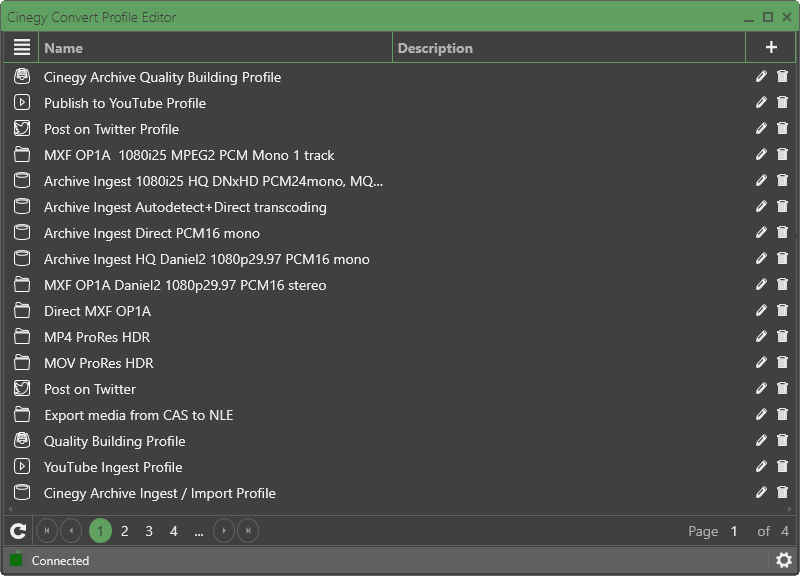
Cinegy Convert Profile Editor is represented as a table with the list of transcoding targets correspondingly registered in the Cinegy Process Coordination Service:
|
Important
|
To learn about the Profile Editor interface management, refer to the Handling Transcoding Targets section. |
|
Press this button to refresh the transcoding targets list. |

The indicator in the bottom part of the window shows the connection of Cinegy Convert Profile Editor to the Cinegy PCS.
|
Important
|
Refer to the Cinegy Process Coordination Service Manual for details on running and configuring the Cinegy PCS. |
|
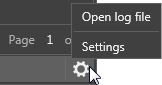
Press this button to access either the log file or the Cinegy PCS connection settings: |

Press + in the main Cinegy Profile Editor window to create a new profile.

The following profile types are currently supported:
Select the required one and configure it using the resource edit form that appears.
Profile Filtering
Filtering allows you to display only profiles of specific types or those matching defined criteria, making them easier to locate and manage.
Filtering by Type
To filter profiles by type, click the  icon in the "Type" column header and select the required profile types in the dialog that appears:
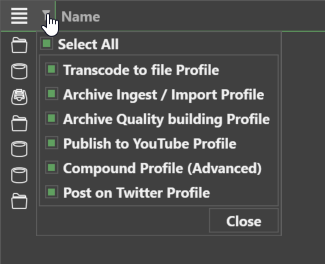
Only profiles of the selected types are displayed. Use the "Select All" option to select or clear all profile types at once.
Filtering by Criteria
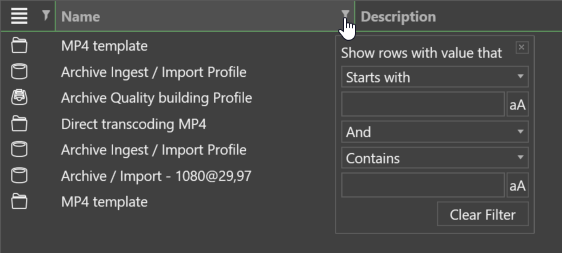
Profiles in the list can also be filtered by criteria applied to their name or description. To do this, click the icon in the corresponding column header and define the required criteria in the dialog:
|
To clear all filtering conditions, press the "Clear Filter" button. |

Columns with applied filtration are marked with the  icon.
icon.