Inserting Media into the Playlist
Reading time ~5 minutes
The following items can be added to a playlist: media files in formats supported by Cinegy Air, Cinegy Archive clips and Sequences, Cinegy Title templates, and special items such as live, dummy items or notes.
Media Insertion Methods
The diagram below demonstrates different ways of inserting media into a playlist:
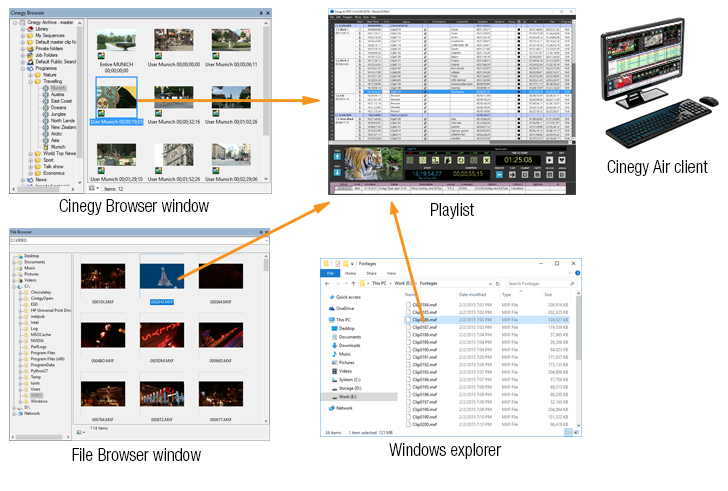
Depending on the type of item, you can use different methods to add items to the playlist:
-
Media files, MCRitems, and Cinegy Title templates using the "Insert" command from the "Item" main menu;
-
Media files, MCRitems, and Cinegy Title templates via drag-and-drop from the shared folder (inventory) using the integrated Cinegy’s File Browser or third-party file managers (e.g., File Explorer);
-
Cinegy Archive nodes via drag-and-drop directly from the integrated Cinegy Browser or Cinegy Search window;
-
Individual Cinegy Air playlist items: via drag-and-drop between two open Cinegy Air Playlist Editors or Cinegy Air control applications.
-
Live, dummy, and note items by pressing the corresponding buttons on the item editor panel.
Drag-and-Drop from File Browser
The File Browser provides access to materials stored on your local computer or network share. It is used to compose playlists with MCRitems (clips from Sequences, Bins, and Rolls that have been exported to the inventory folder) and supported media files.
To add one or more items from the File Browser to a playlist, simply use drag-and-drop:
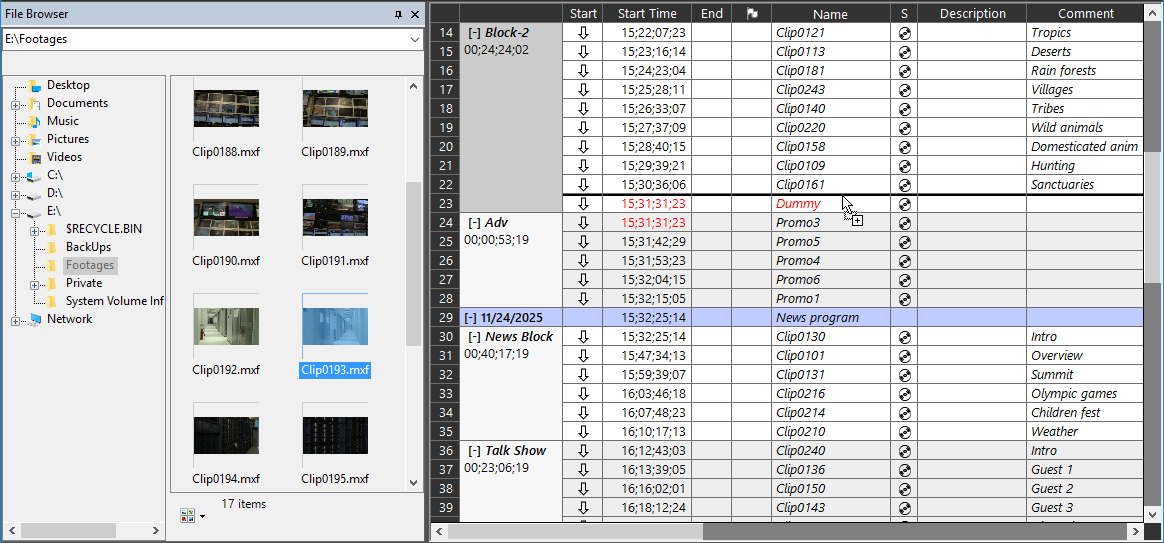
During drag-and-drop operations, the position of the inserted item is indicated by a bold black drop line. The inserted file(s) will adopt the aspect ratio defined in the Cinegy Air Configurator.
Drag-and-Drop from Cinegy Browser
The Cinegy Browser allows users to browse the Cinegy Archive database, view the contents of bins and Rolls, and add video and audio clips, Sequences, placeholder MOGs, and documents (e.g., Cinegy Title templates) to the playlist via simple drag-and-drop:
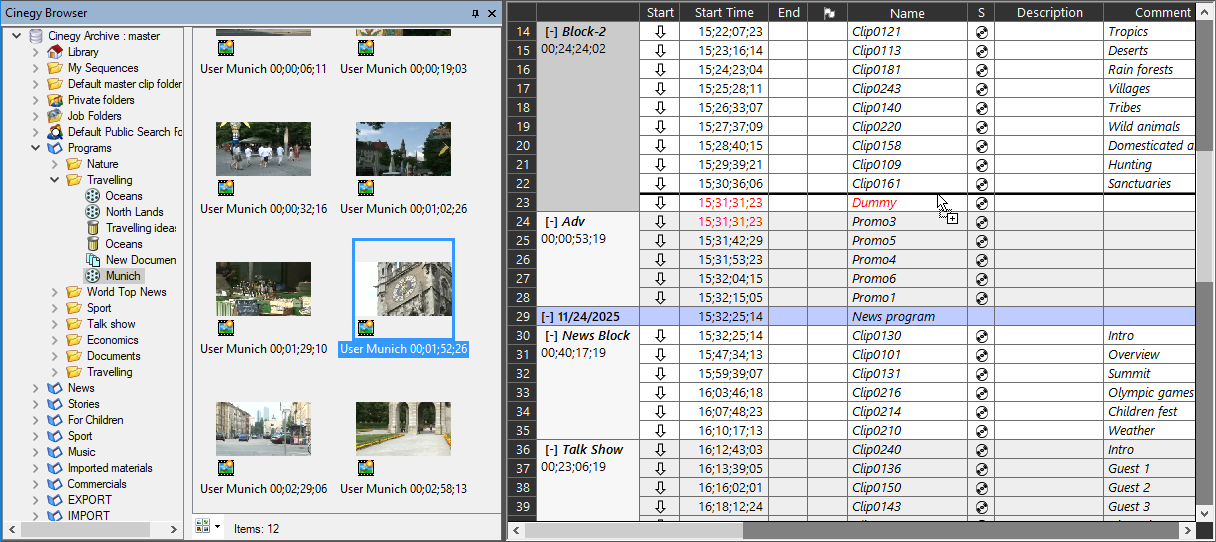
During drag-and-drop operations, the position of the inserted item is indicated by a bold black drop line.
|
Note
|
Using the Cinegy Search window offers identical functionalities. |
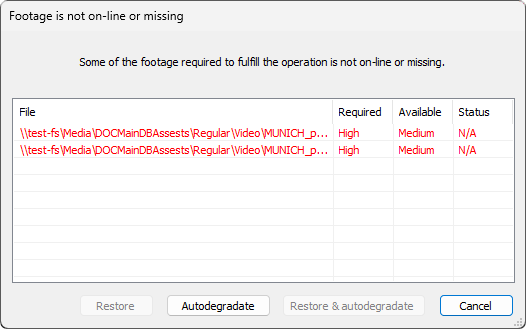
If the highest quality of the clip is not available and you drag and drop this clip into a playlist, a dialog box appears prompting you to choose how to proceed:
|
Press the "Restore" button to retrieve unavailable files stored in the HSM (Hierarchical Storage Management) from the Cinegy Archive database. |
|
Press the "Autodegradate" button to switch the clip to the next available quality. For example, if high quality is required but not available, and medium quality is available, the auto-degradation will switch the clip to the medium quality. |
|
Press the "Restore & autodegradate" button to retrieve unavailable files stored on the HSM, and in the case of failure, switch the clip to the next available quality. |


Adding Clips While Recording
Even while material is still being captured to the Cinegy Archive database, you can add it to a Cinegy Air playlist.
|
Note
|
Playback while ingesting into the MOV container within the Cinegy Archive database is not supported due to container limitations. |
When working with media storages without involving the Cinegy MAM architecture, it is also possible to add MXF OP1a files that are currently being written (e.g., via Cinegy Convert or Cinegy Capture) to the playlist.
|
Note
|
To ensure proper video and audio identification, wait 15–20 seconds after the capture starts before adding the file to the playlist. |
When dragging such a clip from Cinegy Browser or Cinegy Search into the playlist, a dialog box appears, showing the current duration of the clip and prompting you to specify the estimated duration:
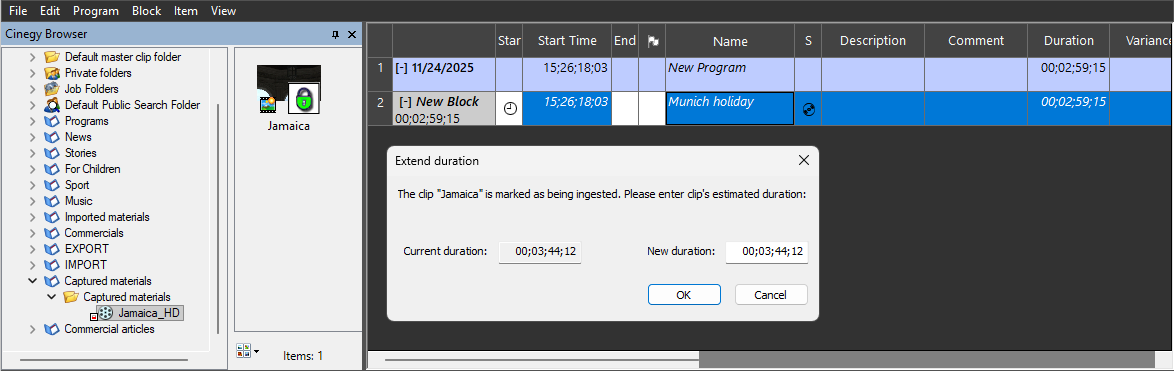
After defining the duration settings, press "OK" to confirm adding the clip to the playlist.
|
Caution
|
If the estimated clip duration exceeds the actual captured material duration, the configured emergency footage will be displayed at the end of the clip playout. |
Once the ingest session is completed, these items are treated as modified and displayed in blue in the playlist table and on the timeline.
Using the "Insert" Command
To add desired MCRitems or media files in a Cinegy Air-supported format, click the "Insert" > "Item(s)…" command:
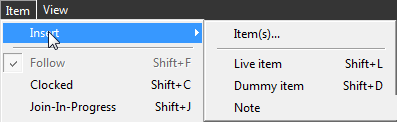
The "Open" dialog box appears, allowing you to browse to the file storage folder:
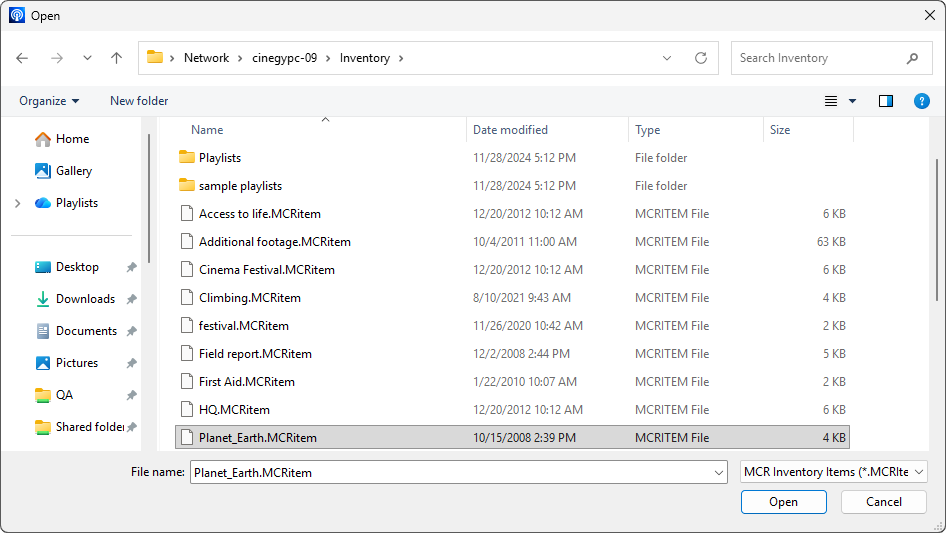
Select one or several items in *.MCRitem format or change the "Files of type" option to "All files" and select files in any Cinegy Air-supported format. Press "Open" to add selected files to the playlist.
|
Important
|
The item(s) will be inserted with the aspect ratio, defined in the Cinegy Air Configurator. For more details, see the Aspect Ratio paragraph. |
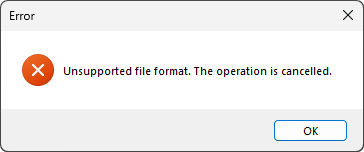
If selected media files are not supported by Cinegy Air, the following error message appears:
|
Important
|
Refer to this article for more details on creating MCRitems. |
Drag-and-Drop from File Manager
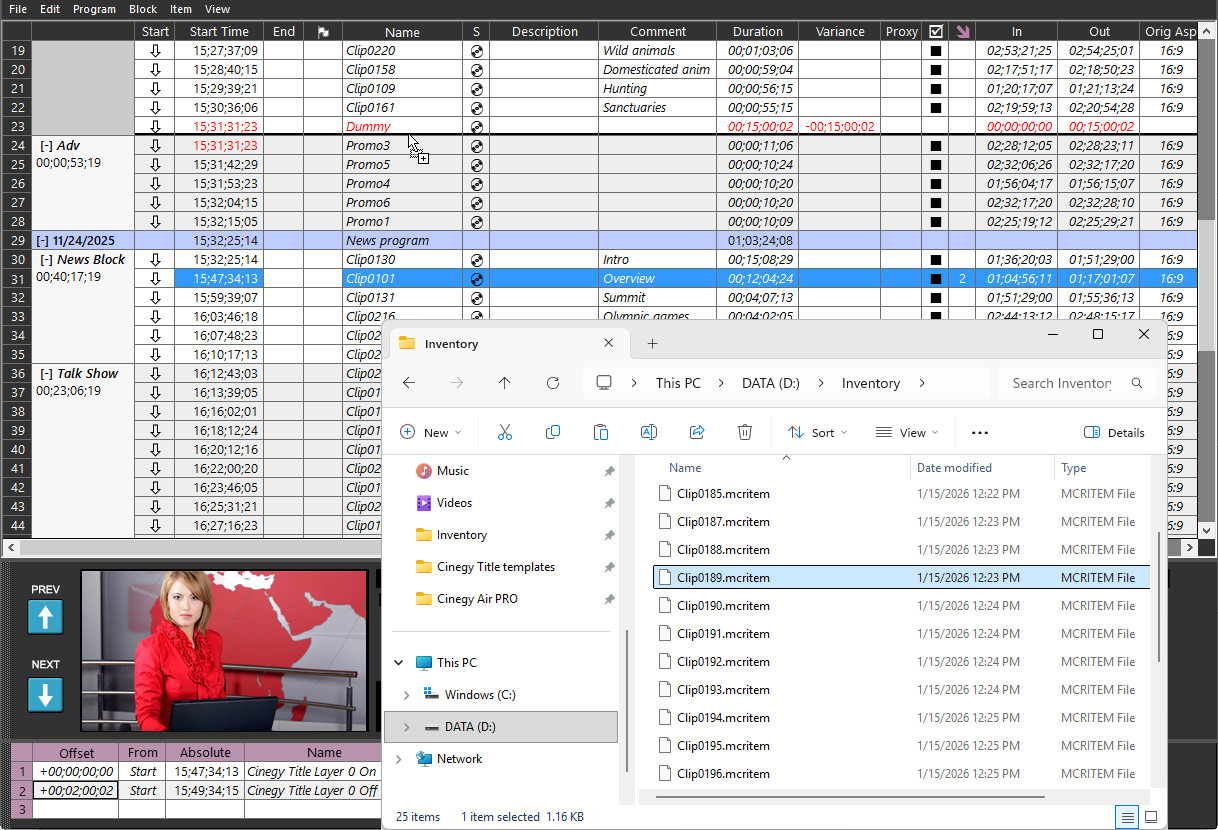
When composing a playlist, single or multiple media files can be dragged and dropped from the file manager (e.g., File Explorer) directly to the Cinegy Air playlist. Use the file manager to navigate through local disks or network storages (e.g., shared inventory folder), select the media files, and add these to the playlist via drag-and-drop.
Adding Special Items
To add special items, such as live, dummy, or notes, press the corresponding button on the item editor panel:
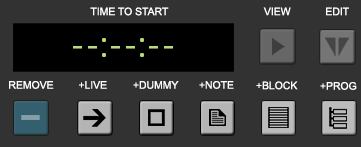
Alternatively, you can use the "Item" > "Insert" menu to add these items.
TV Format Compatibility
Ensure that all items you are adding to the playlist use compatible TV formats. Otherwise, a source error message will appear during the insertion process:

If an item has a higher frame rate and/or resolution than the current playlist, an exclamation mark inside a yellow circle will indicate this in the playlist table:

Such items will not be played back by the Cinegy Playout engine, even if the same playlist TV format is set up for the Cinegy Playout engine. If the Cinegy Playout engine has a higher TV format, this item will be played back.
For example, a playlist has a TV format setting of 1920x1080p50, then items with a higher frame rate or frame size (e.g., 3840x2160p25) will be added to the playlist with an exclamation mark inside a yellow circle, meaning they will fail to be played out if the Cinegy Playout engine is set up for 1920x1080p50. An item with the same or lower frame size or frame rate (1920x1080p50 - 720x576i25) will be added to the playlist without indication and will be played back if the Cinegy Playout engine is set up for 1920x1080p50.
|
Important
|
Read more about Cinegy Playout engine player mode in the following section. |