Interface
Reading time ~4 minutes
The interface of the Cinegy Air control application is made up of six panels:
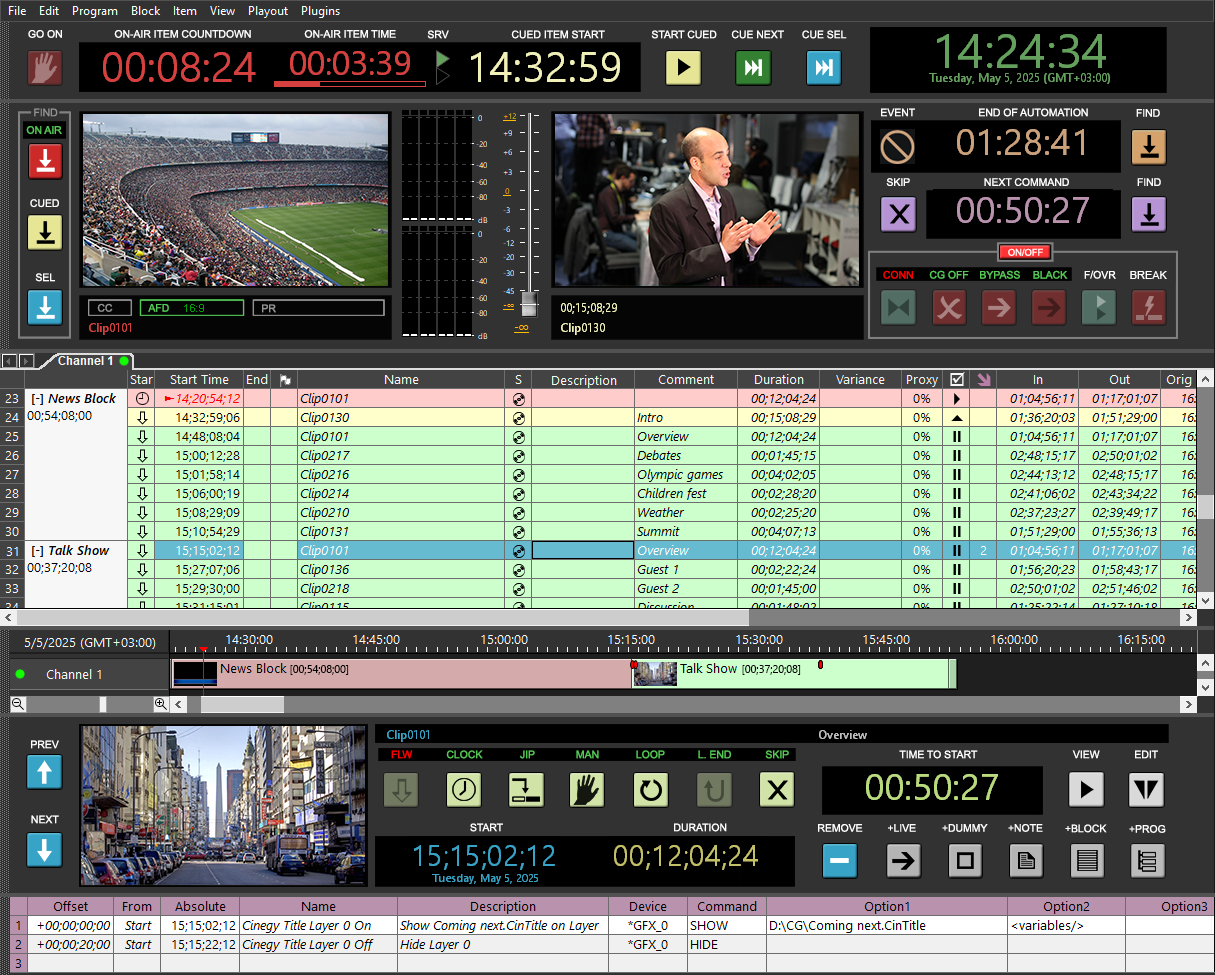
The Cinegy Air Control Application Interface Sample
|
Note
|
Some panels can be hidden to adjust the interface layout according to your needs. |
Playlist Caption
The Cinegy Air window caption displays the version number, the name of the currently opened playlist, and the associated playout server.

|
Important
|
For details on the playlist caption structure, refer to the Playlist Caption paragraph in the section describing the Cinegy Air Playlist Editor interface. |
Main Menu
The main application menu provides access to the commands for working with a playlist and its items:

On-Air Control Panel
Here you will find the countdown and clock displays of the current on-air item, as well as the system time and buttons that control playback.

Playout Control Panel
The playout control panel is only available in the Cinegy Air control application. There are two control monitors. The first monitor (on the left) shows the item that is currently being broadcast. The second monitor (on the right) shows the first frame of the next cued item that will be broadcast next.
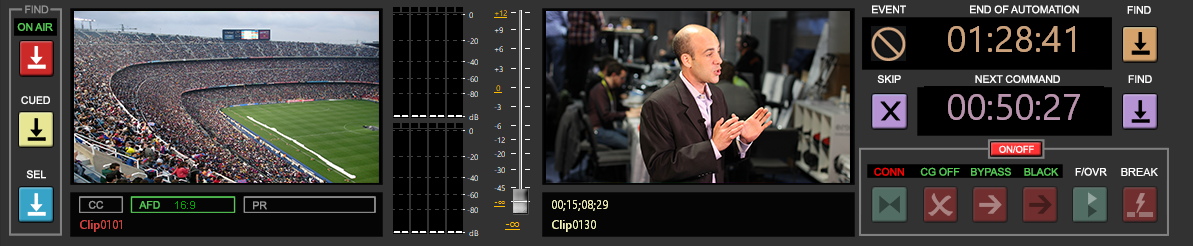
It is possible to swap the position of the control monitors. To do this, open the Cinegy Air Configurator and select the "Swap control monitors" checkbox:

|
Important
|
It is possible to reassign the default shortcut used to show/hide the playout control panel and to add a new combination(s) via the keyboard customizer. Refer to the Keyboard article for more information about the keyboard customization. |
Channels Control Panel
Each channel is represented by a separate tab on the playlist panel. When the tab is activated, the corresponding channel playlist will be displayed:
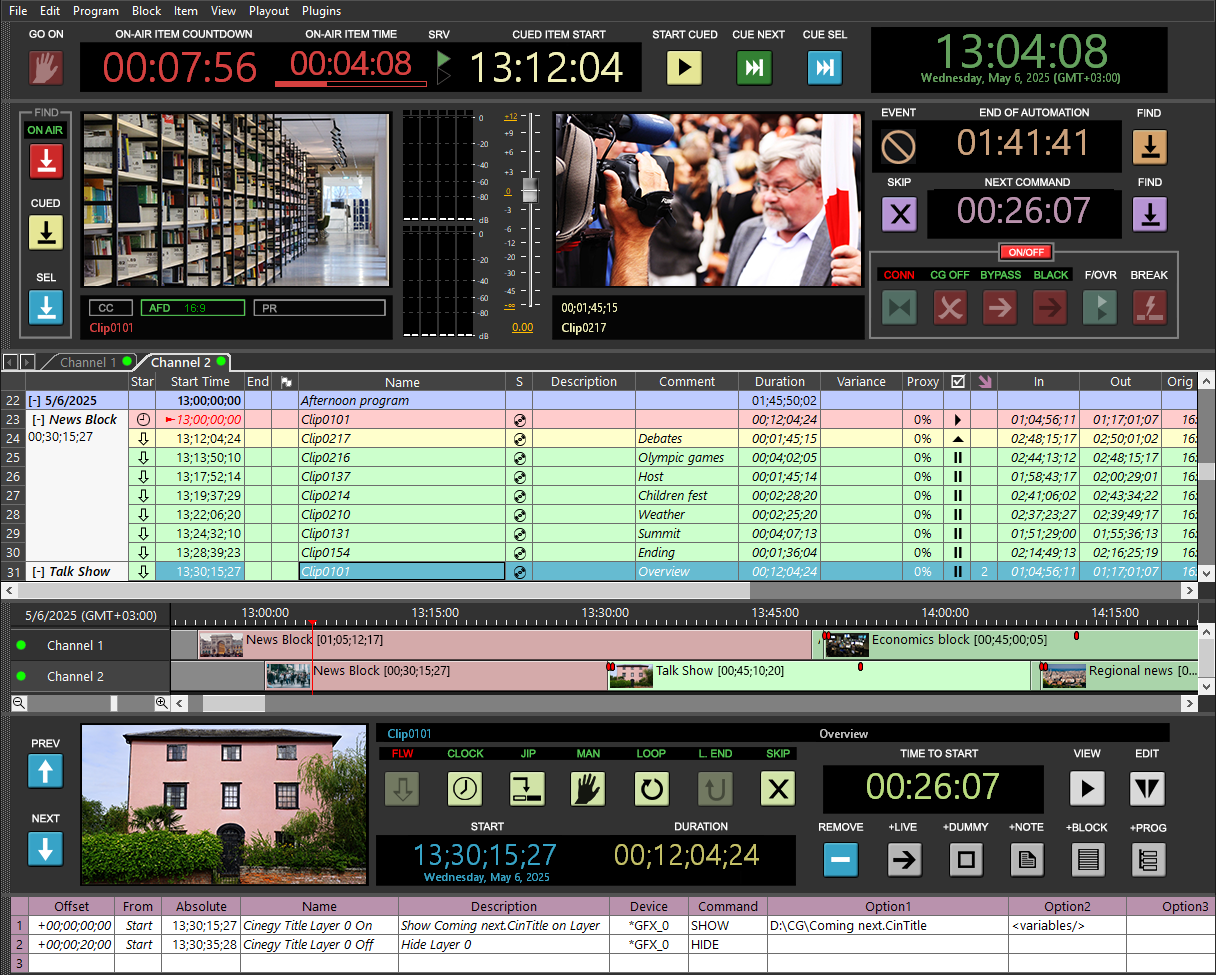
Switching Between Channels
To navigate between different channels, click the desired channel tab in the playlist panel or select a channel from the list on the timeline. Selecting any playlist item from the channel automatically switches to the corresponding channel tab and highlights the selected item in the channel playlist. The broadcasting control is switched over to the selected channel.
Channels Preview
Cinegy Air has an optional panel for the multi-channel playout preview displaying the outputs from all the configured channels.
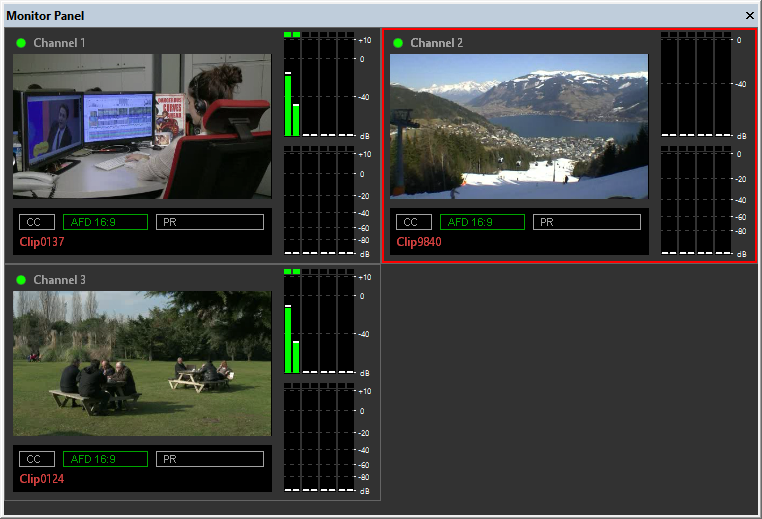
The monitor panel shows the following information about each channel:
-
channel name with the channel status indication;
-
video preview;
-
VANC data;
-
on-air item name.
The active channel preview window is highlighted with a red border. To quickly switch between channels, simply click the desired channel preview window. The broadcasting control will be switched over to the corresponding channel.
VANC Data Display
|
Note
|
If a media file contains VANC (Vertical Ancillary Data Space) data, it will be displayed on the playout control panel on the corresponding control monitor. |
The following VANC information is available in Cinegy Air:
-
CC (Closed Captions) – indicates if closed captions are present in the current media file.
-
AFD (Active Format Description) – displays the active picture aspect ratio.
-
PR (Parental Rating) – displays the TV parental guidelines rating of the current media content.
AFD Data
The following table shows the AFD codes for different aspect ratios of the active image:
| Target Aspect Ratio | AFD Code | |
|---|---|---|
16:9 output |
4:3 |
1001 |
14:9 |
1011 |
|
16:9 |
1000 |
|
otherwise |
1000 |
|
4:3 output |
4:3 |
1000 |
14:9 |
1011 |
|
16:9 |
1010 |
|
otherwise |
1000 |
Playlist Panel
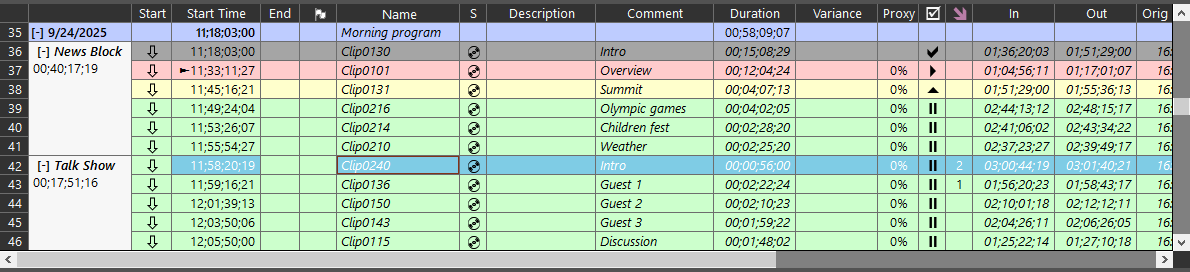
The playlist in the Cinegy Air control application is represented as a table, where each row corresponds to a playlist item and displays its metadata, similarly to the playlist in the Cinegy Air Playlist Editor. The playlist panel view can be adjusted to display only the columns relevant for your workflow. All items in the playlist have a background color that changes depending on the item status.
|
Important
|
Refer to the Working with Playlists section for detailed guidance on managing playlist components and performing common playlist operations. |
Timeline

The timeline panel represents an interactive list of all the available channels. The playlist for each channel is shown as a horizontal timeline. The current playout position is marked with a red triangle
|
Important
|
Refer to the Timeline article for more details. |
Item Editor Panel

The item editor panel is used to edit individual items, add items, new blocks, and new programs to the playlist, and navigate through the playlist. The preview window is located on the left of this panel. It shows the first frame of the selected item.
Secondary Events Panel

This panel provides an interface to manage secondary events from external devices for the selected item.
Integrated Browsers
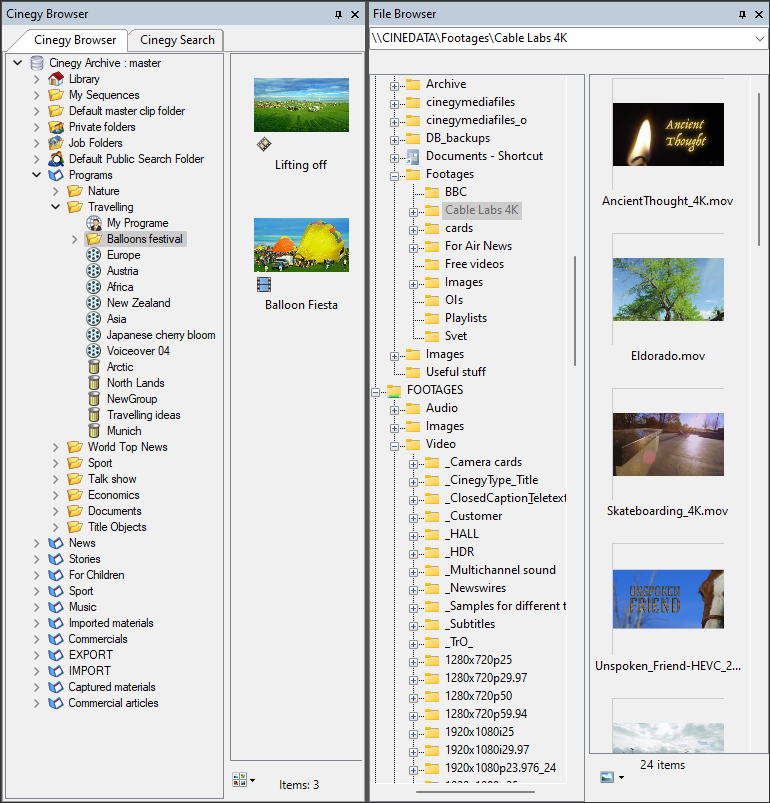
Navigating through Cinegy Archive databases, searching for specific nodes, and selecting clips in Rolls, Sequences, or ClipBins to add them into the Cinegy Air playlist, browsing for locally stored clips and MCRitems – all these actions are available in the integrated browser windows located by default in the left-hand part of the Cinegy Air window.
The following windows are available for use:
-
File Browser – integrated file manager system.
-
Cinegy Browser – integrated Cinegy Archive browser.
-
Cinegy Search – plug-in to perform search operations through the Cinegy Archive database.