Automation
Reading time ~6 minutes
Cinegy Title Studio supports data-driven playlists. Instead of manually entering text, playlist items can be linked to external data sources such as XML, JSON, CSV, or MS Excel files. By mapping fields from the data source to variables in the template, Cinegy Title Studio automatically reads and displays the corresponding content.
This setup needs to be configured only once. After defining the data source and mapping rules, the configuration can be saved as a reusable playlist item that can be triggered on air whenever required. For reliable automation, the referenced files must follow a predefined structure. Although Cinegy Title Studio does not connect directly to online APIs, external systems can provide updated local files, and any changes in these files are reflected on air automatically.
Creating Automated Items
To configure automation for a playlist item, select the "Edit Item" command from the item’s context menu. The "Edit playlist item" dialog opens:
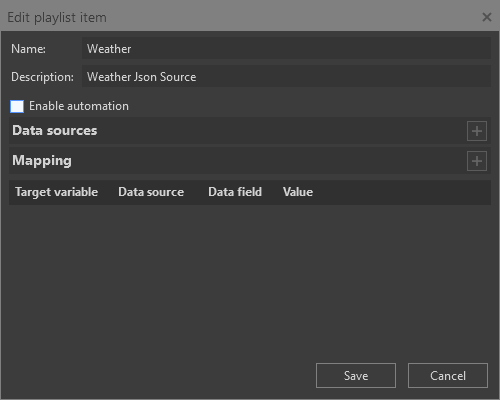
In this dialog, select the "Enable automation" option. Once enabled, the "Data sources" and "Mapping" sections become available.
Adding Data Sources
In the "Data sources" section, click the  button and select a data source file using the standard file selection dialog. Multiple files can be added as data sources if required.

Next, map template variables to the required values from the selected data sources.
Creating Mapping Rules
In the "Mapping" section, click the  button to create a new mapping rule:
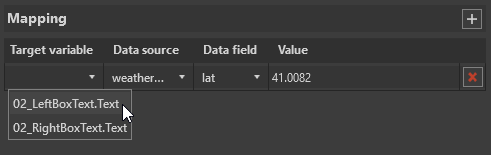
In the first two columns, select a variable from the list of those available in the Cinegy Title template and choose the corresponding data source file. In the "Data field" and "Value" columns, select the required data element and its value.
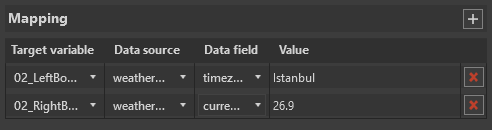
Saving and Verifying Automation
In the "Edit playlist item" dialog, click "Save" to finish editing the playlist item.
|
The icon of the item in the playlist grid changes to indicate that automation is enabled. |


The same data mapping functionality is also available on the "Automation" tab within the Edit/Preview panel when the automated item is selected in the playlist.
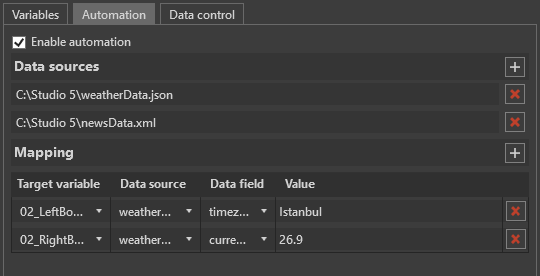
Controlling Data Updates
On the "Data control" tab of the Edit/Preview panel, you can define how values from the data source are applied. Values can be updated manually using the "Previous value" and "Next value" buttons or automatically.
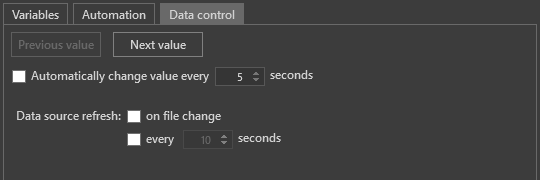
Enable "Automatically change value every" to automatically switch to the next value after a specified number of seconds.
Data retrieved from external source files can also be refreshed automatically. The "Data source refresh" parameter defines how updates are triggered and provides two options:
-
on file change – data is refreshed whenever the source file is modified.
-
every <n> seconds – the system periodically reloads the data source at the specified interval.
Data Files Creation Rules
CSV
Comma-Separated Values (CSV) files can be used as source files for automation. A CSV file stores data in a simple table structure where each line represents a record and values are separated by commas.
The first row of the file must contain the header row, which defines the data fields used for mapping. This row is mandatory and must appear exactly once in the file.
The following requirements apply when using a CSV file as a data source:
-
The file delimiter must be a comma
,. -
UTF-8 encoding is recommended.
-
Each data row must contain the same number of columns as defined in the header row.
-
If a field value contains a comma, the value must be enclosed in double quotes.
-
If a quoted value contains a double quote, it must be escaped using two double quotes
" "according to the CSV standard. -
Empty values are allowed, but the column order must remain consistent across all rows.
Sample SCV file structure:
name,temp,humidity,pressure,description
London,19,61,1009,"broken clouds"
Paris,20,59,1013,"clear sky"
Berlin,25,62,1013,"clear sky"
MS Excel
Microsoft Excel (.xlsx) files can be used as source files for automation if the data is organized as a simple table. Each row in the table represents one record, while columns correspond to data fields used in the mapping.
Data in MS Excel must be stored as a single flat table to ensure correct interpretation during mapping.
The following requirements apply when using an MS Excel file as a data source:
-
The file must be a Microsoft Excel workbook (.xlsx).
-
Only standard Excel text cells are supported; UTF-8 encoding is not applicable.
-
Data must be organized as a single table.
-
It is recommended to use a single worksheet containing the table.
-
If multiple worksheets exist, only the first worksheet is processed; place all required data there.
-
The first row must contain unique column headers and appear exactly once.
-
Header names must be unique.
-
Each subsequent row represents one record.
-
The table must be rectangular, meaning each row contains the same set of columns defined by the header row.
-
Avoid merged cells, grouped headers, side tables, notes, or multiple tables within the same worksheet.
-
Empty cells are allowed, but column positions must remain consistent.
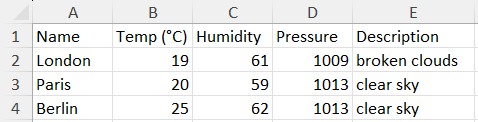
Sample MS Excel table structure:
XML
XML files can be used as source files for automation data when structured as a flat list of records. Each record is represented by an individual element within a single root element.
An XML document used as a data source must contain exactly one root element. This root element holds a collection of item elements, where each item element represents one record (row) of data.
The following requirements apply when using an XML file as a data source:
-
The XML document must contain exactly one root element.
-
The root element must contain a list of item elements (for example:
<data … />). -
Each item element represents one record.
-
UTF-8 encoding is recommended.
-
All field values must be stored as attributes of the item element, not as nested child nodes.
-
Nested structures are not supported (for example, avoid structures such as
<data><headline>…</headline></data>). -
Attribute names are used for mapping and must remain consistent across all items.
-
Attribute values must follow standard XML escaping rules, such as using
&for & and"for quotation marks where necessary.
Sample XML file structure:
<?xml version="1.0" encoding="utf-8"?>
<weather>
  <data name="London" temp="19" humidity="61" pressure="1009" description="broken clouds" />
  <data name="Paris" temp="20" humidity="59" pressure="1013" description="clear sky" />
  <data name="Berlin" temp="25" humidity="62" pressure="1013" description="clear sky" />
JSON
JSON files can be used as source files for automation data when structured as a collection of records within a single root object. Each record is represented by an object inside an array.
A valid JSON data source must begin with one root object, which contains a property whose value is an array of item objects. Each object within this array represents one record of data.
The following requirements apply when using JSON files as a data source:
-
The JSON document must contain a single root object.
-
UTF-8 encoding is recommended.
-
The root object must contain one array that holds the records.
-
The root object must include a property whose value is an array of item objects (for example:
"items": [ … ]or"NewsList": [ … ]). -
Each object inside the array represents one record.
-
Data fields used for mapping must remain consistent across all items.
-
Values can be strings, numbers, or booleans, but the overall structure must remain consistent for every item.
Sample JSON file structure:
{
  "MyItems": [
    {
      "name": "London",
      "temp": 18.78,
      "pressure": 1009,
      "humidity": 61,
      "description": "broken clouds",
    },
    {

      "name": "Paris",
      "temp": 19.84,
      "pressure": 1013,
      "humidity": 59,
      "description": "clear sky",
    },
    {
      "name": "Berlin",
      "temp": 24.78,
      "pressure": 1013,
      "humidity": 62,
      "description": "clear sky",
    },
  ]
}