Panels Customization
Reading time ~3 minutes
The Cinegy Air software is very easy to manage due to its fully customizable interface, where most panels are scalable and collapsible.
Hiding/Showing the Panels
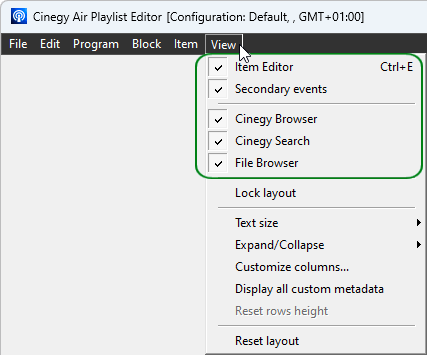
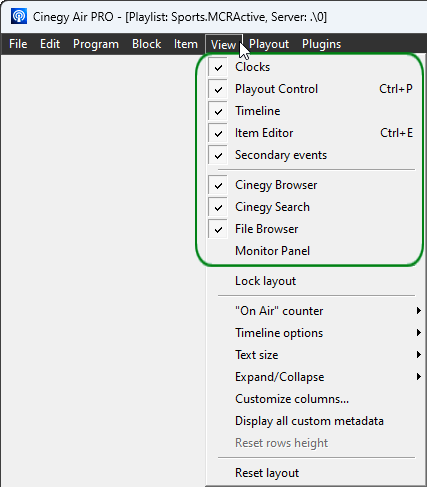
Some panels can be hidden to adjust the interface layout according to your needs. Select the relevant option from the "View" main menu to show or hide a specific panel.
The list of panels that can be shown or hidden varies depending on whether you are working in the Cinegy Air Playlist Editor or the Cinegy Air control application:
|
|
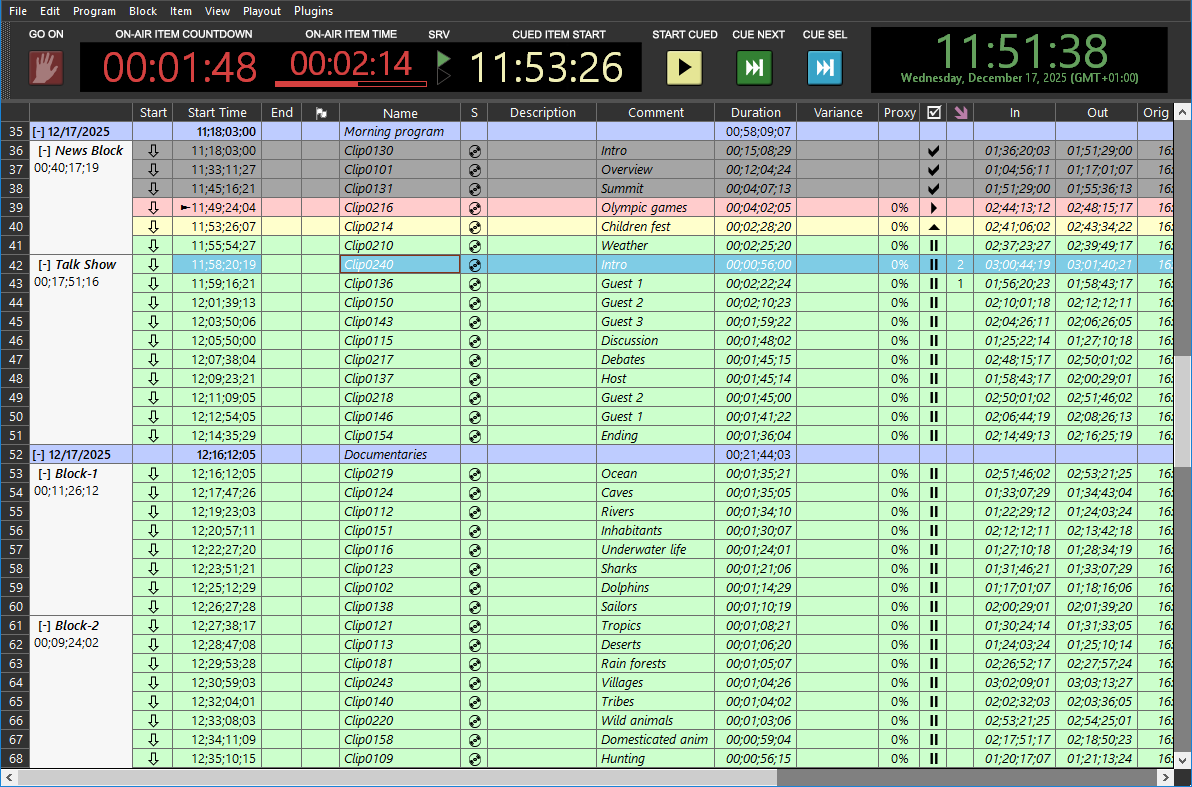
For example, if only on-air control and playlist panels are needed, the Cinegy Air control application will look as follows:
Two commonly used panels can also be quickly toggled using keyboard shortcuts:
Ctrl+E – show/hide the item editor panel.
Ctrl+P – show/hide the playout control panel.
Cinegy Browser and Cinegy Search can be disabled using the "Don’t use Cinegy Browser" option, which is configured separately for the Cinegy Air control application and the Cinegy Air Playlist Editor in the Cinegy Air Configurator.
Panels Docking
It is possible to customize the position of panels within the Cinegy Air window to create layouts that work best for various tasks.
The tabs and panels can be docked to a convenient location or float as separate windows, for example, to be displayed on different monitors. The customized layouts are retained so that next time the Cinegy Air control application is open, the panels are set according to your needs.
|
Note
|
The playlist panel is not dockable. |
Initially, the default layout is applied and its editing is locked, which is indicated by the checked "Lock layout" option in the "View" main menu:
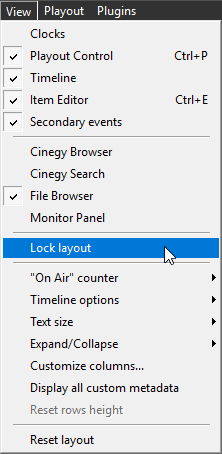
This mode does not allow docking panels, but their display can be switched on/off.
To enable layout editing, uncheck the "Lock layout" option in the "View" main menu.
To undock the panel, click the leftmost bar on the panel and drag it to the desired location:
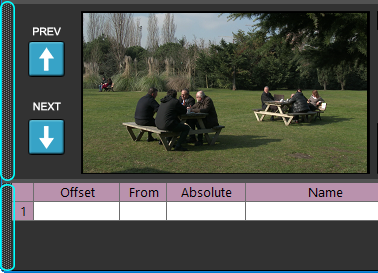
While you drag, visual hints appear:
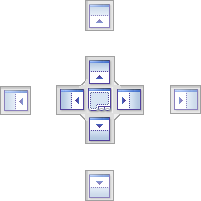
When the mouse cursor hovers over one of these hints, the highlighted area will show where the panel will be docked if you release the mouse button there.

Panel tabs can be docked as separate panels. To do this, click the tab caption and drag-and-drop the panel to a desired position:
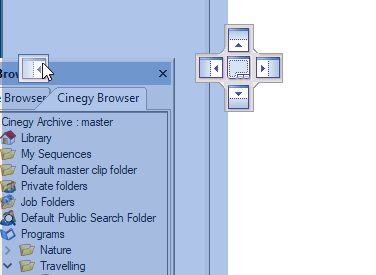
To make the panel or tab floating, release the mouse button at the desired place outside the hints.
For all the panels to become fixed in their positions once the layout is created, check the "Lock layout" option in the "View" main menu.
To reset to the default layout, use the "Reset layout" command in the "View" main menu.
|
Caution
|
Resetting the default layout causes the playlist row height to reset. |
|
Note
|
Application restart is required for this action to take effect. |