Special Items
Reading time ~6 minutes
The following items in the playlist are dedicated to special operations:
Live item – an item for a live broadcast signal.
Dummy item – an item without media material for reserving a specific amount of time in the playlist.
Note – a text-based item used to provide additional information or annotations related to playlist components.
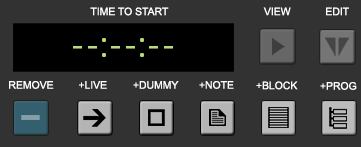
Adding these items can be done by pressing the corresponding buttons on the item editor panel:
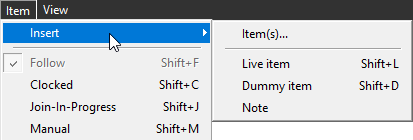
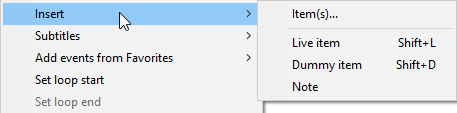
They can also be created using the "Item" > "Insert" main menu or from the "Insert" context menu:
|
|
Managing live and dummy items is similar to working with regular items. Refer to the Managing Items article for information on possible operations with playlist items.
Live Item
A live playlist item is an object that refers to the live broadcast signal. In other words, it represents the content that is being streamed live as opposed to pre-recorded.
A signal for a live item can be received from an input device configured via the Cinegy Playout configurator, or it can link to an RTP/UDP/SRT stream.
|
Press the "+Live" button on the item editor panel to add a live item after the currently selected item. |

The default keyboard shortcut for this operation is Shift+L, but it can be reassigned via the keyboard customizer.
A live item is marked with the video camera icon in the playlist grid:

The manual end trigger type is assigned automatically to live items due to their specificity.
The default duration applied when inserting a live item into the playlist is defined in the preferences. To change the duration of a live item, double-click the "Duration" cell and enter the desired value. The duration cannot be less than 0.5 seconds. For live items, the In point is always set to 00:00:00:00.
RTP/UDP/SRT Source Selection
There are three ways to define the source URL for a live item: using Cinegy Route Browser, manually entering the live source URL in the item properties or specifying the source URL directly in the "Live Source URL" column in the playlist grid.
If you have Cinegy Route Browser installed on the computer running Cinegy Playlist Editor or Cinegy Air control application, you can drag and drop the physical source or virtual destination from the Cinegy Route Browser directly onto the live item entry in the playlist.
|
Tip
|
You can update the link of the existing live item using Cinegy Route Browser by dragging and dropping the physical source or virtual destination onto the live item entry while holding the Ctrl key down. |
To define the live source via item properties, select the "Item properties…" command from the live item context menu and switch to the "Parameters" tab.
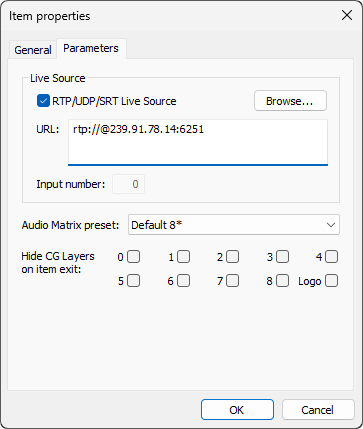
Check the "RTP/UDP/SRT Live Source" option to use the IP signal as the live feed for a live item playout and define the RTP, UDP, or SRT URL for the live input stream. You can do this by simply dragging and dropping the source URL or virtual destination from the Cinegy Route Browser into the "URL" field.
|
Note
|
You can customize the playlist grid to display the "Live Source URL" column, where live source URL can be entered directly. |
Another way is to press the "Browse" button and select a video stream registered on the specified server by Cinegy Route Directory Service using the integrated Cinegy Route browser that appears. Cinegy Route Directory Service can be installed on any dedicated PC and can be used by all playout stations.
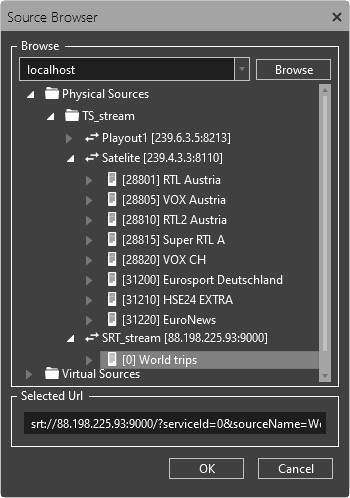
Select the required video stream and press "OK". It will be automatically converted to RTP/UDP/SRT URL:
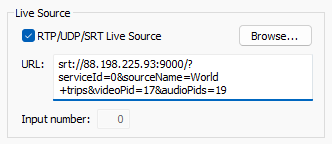
Alternatively, you can enter the URL address using the keyboard.
Selecting an Input Device as a Source
The input device that provides a source signal for a live item is defined in the "Input number" field:
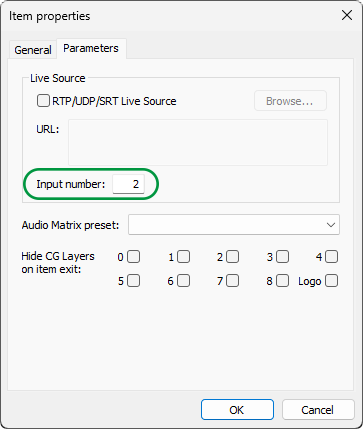
Here specify the number of the input device. The input number values start from 0; specifying 1 means that the input device signal is the second in the list, 2 means that the input device signal is the third in the list, and so on:
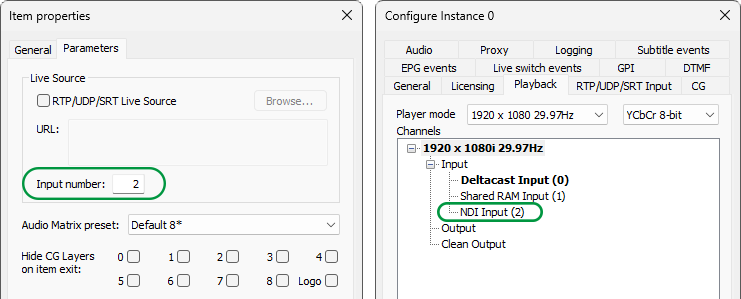
Changing the input number is not possible when the live item is on air. For cued and other scheduled items, the input number can be edited.
|
Note
|
RTP/UDP/SRT live input defined in the "Item properties" has priority over another input (SDI, NDI, Shared RAM, etc.) if it is configured. |
Dummy Item
The dummy item is a reserved "empty" item without media material with a specified duration. It is used to allocate a specific amount of time in the schedule, which will be filled later with one or several clips of the corresponding total duration.
|
You can insert a dummy item into the playlist by pressing the "+Dummy" button. |

The default keyboard shortcut for this operation is Shift+D, but it can be reassigned via the keyboard customizer.
A dummy item is shown in red on the playlist and isn’t broadcast:

The operator must fill it in with appropriate clip(s) before going on air. If this item is not completely filled when the previous item in the playlist is on air, the dummy item is not marked as cued and is automatically skipped; the next valid playlist item is marked as cued and is broadcast instead.
The default duration applied when inserting a dummy item into the playlist is defined in the preferences. To change the duration of a dummy item, double-click the "Duration" cell and enter the desired value. The duration cannot be less than 0.5 seconds.
You can manage a dummy item as a regular playlist item, except for viewing and editing its media, as it is absent.
To fill in the dummy item, select the actual item(s) in the integrated File Explorer, hold down the Ctrl key, and drag-and-drop the item(s) into the selected dummy item position. The item(s) will be inserted into the playlist, preserving the original metadata as well as inheriting the events and properties previously defined for the dummy item, while the dummy item will either disappear if the total duration of the item(s) matches/exceeds its duration, or it will be cropped to the duration of the item(s).
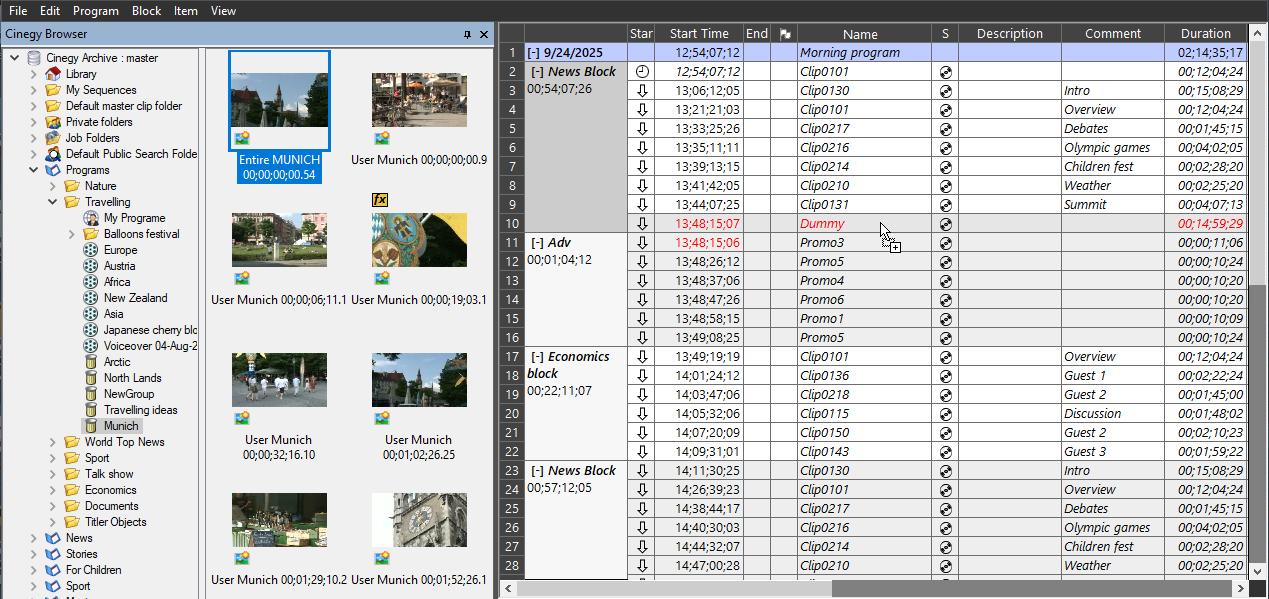
The "Replace items "dialog box appears, allowing you to define the rules for item(s) insertion:
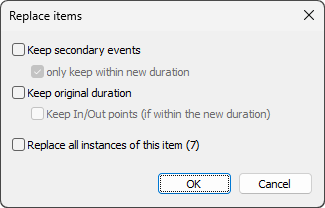
Select the "Keep secondary events" option to preserve the defined secondary events of the dummy item after its content replacement. You can define to keep the secondary events only if they fit into the new item duration by selecting the corresponding option.
If the inserted item(s) duration is longer, you can choose to preserve the original duration of the dummy item by enabling the "Keep original duration" option. You can also choose to keep the In and Out points of the dummy item if they fit into the new media duration.
If a playlist contains several dummy items with the same Traffic ID specified for all of them, they can be filled in one operation. The number in brackets indicates how many dummy items with the same Traffic ID are present in the playlist. Select the "Replace all instances of this item" option to fill them all.
Note
A dedicated note item is used to add any additional information or annotations related to the playlist item, block, or program, such as special instructions, personal comments, contextual information about the item, or important reminders.
|
Press the "+Note" button to add a note to the playlist above the currently selected item. Adding the note does not affect your time scale. |

To edit the note, double-click it or press F2 and enter your new text.
