Interface
Reading time ~2 minutes
The main window consists of the following parts:
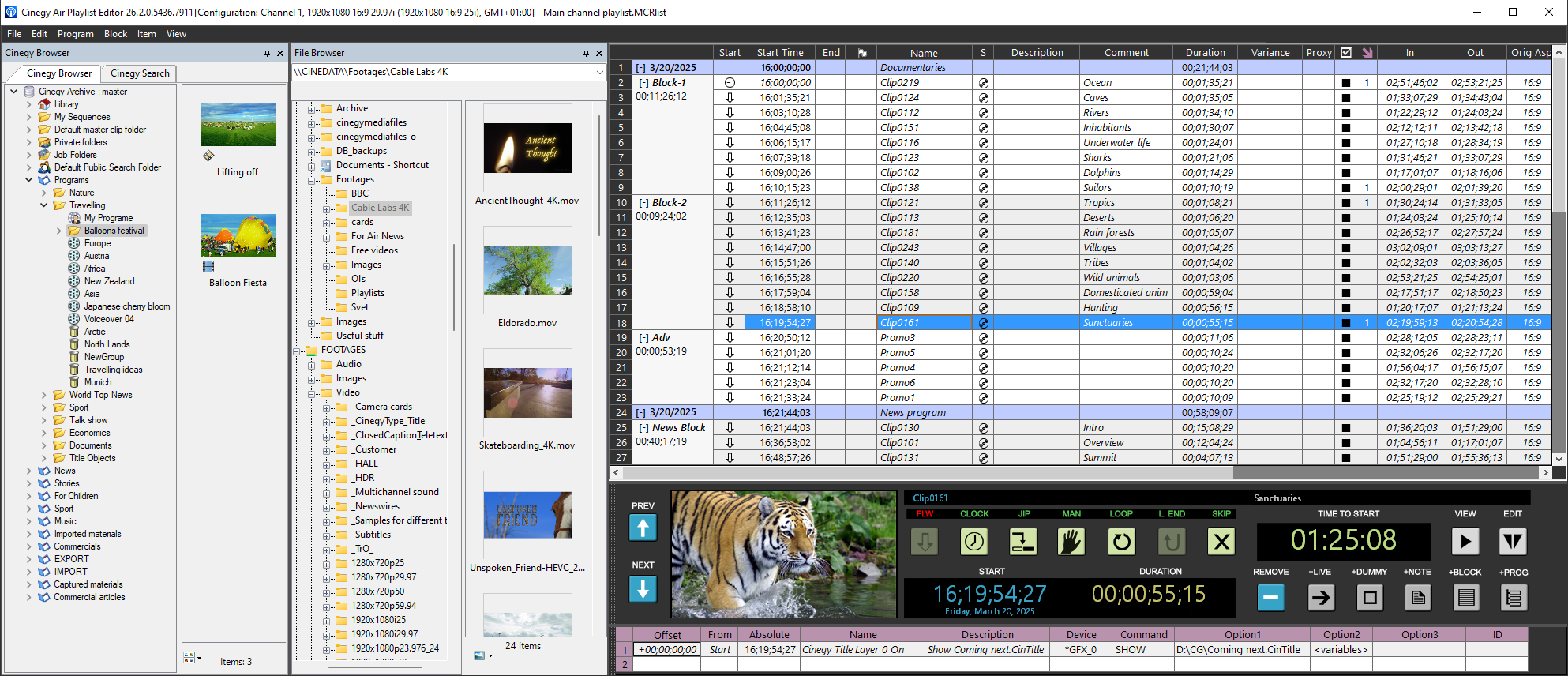
|
Note
|
Some panels can be hidden to adjust the interface layout according to your needs. |
Playlist Caption

The caption of the Cinegy Air Playlist Editor window displays the following information:
-
Cinegy Air version
ImportantRead more about the Cinegy software versioning scheme in this post. -
information about the configured source from which the settings are fetched. It is presented in the following form:
[Configuration: <channel name>, <playlist frame size> <playlist aspect ratio> <playlist fps> (<channel frame size> <channel aspect ratio> <channel fps>), <time zone>]ImportantFor more information on the data displayed in the Cinegy Air Playlist Editor window caption, refer to the Configuration section. -
name of the currently open playlist.
NoteIf a playlist contains any unsaved changes, its name in the caption will be marked with an asterisk.
Playlist Panel
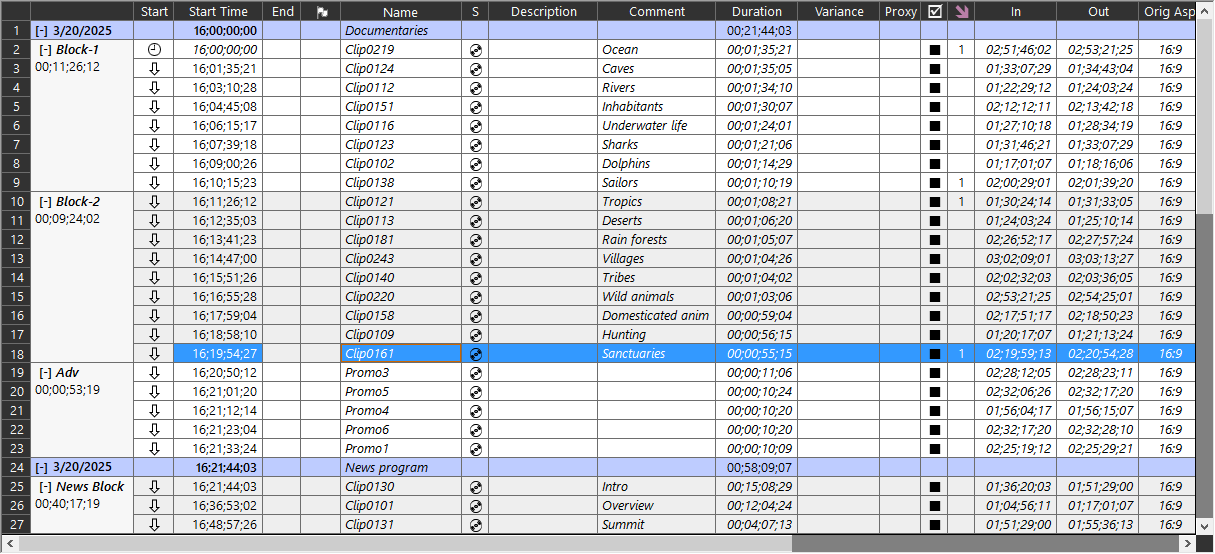
Playlists are represented as a table, where each row corresponds to a playlist item and displays its metadata. The playlist panel view can be adjusted to display only the columns relevant for your workflow.
|
Important
|
Refer to the Working with Playlists section for detailed guidance on managing playlist components and performing common playlist operations. |
Item Editor Panel

The buttons located on this panel allow the user to view and edit selected playlist items, add blocks and special items, easily navigate through the list, remove or skip items, control start time and duration, and set the trigger type for the selected item.
Secondary Events

This panel provides an interface to manage secondary events for the selected item.
Integrated Browsers
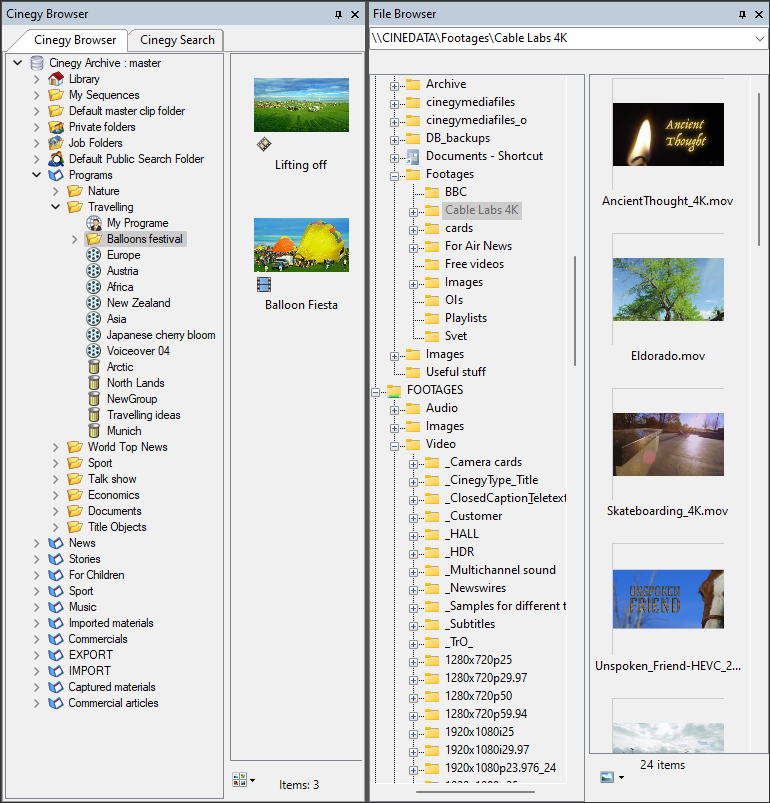
Navigating through Cinegy Archive databases, searching for specific nodes, and selecting clips in Rolls, Sequences, or ClipBins to add them into the Cinegy Air playlist, browsing for locally stored clips and MCRitems – all these actions are available in the integrated browser windows located by default in the left-hand part of the Cinegy Air window.
The following windows are available for use:
-
File Browser – integrated file manager system.
-
Cinegy Browser – integrated Cinegy Archive browser.
-
Cinegy Search – plug-in to perform search operations through the Cinegy Archive database.