Working with Items
Reading time ~10 minutes
In the Cinegy Air Control application, you can perform all operations available in the Cinegy Air Playlist Editor, with the following difference: when you attempt to move already played-back or on-air items, they are duplicated rather than moved.
|
Important
|
Refer to the articles from the Handling Items section for the detailed description of working with items. |
The playlist items are played back one by one from the first clocked item on the schedule in accordance with the following item start time. If there is a gap between successive items, the last frame of the previously played item will be broadcast until the new item goes on air.
The on-air item can be edited. Once the item currently being broadcast is opened in the Clip Viewer, it is possible to define the Out point or split this item at the selected position, with a 3-second safety margin. When the item is split, the remaining part is placed as a separate item in the playlist right beneath the on-air item and automatically cued.
Item Status, Coloring and Font
All items in the playlist have a background color. The color changes according to the item status. The coloring and styles of the playlist entry can also be changed according to playlist programming.
Status
The  column displays the possible status values of an item. In Cinegy Air Playlist Editor they are:
|
the item is ready for playout |
|
the item is skipped |
|
live item |
|
dummy item |
|
the item is empty |
|
the In-Out range of the clip is greater than the In-Out range of the source file |


In the Cinegy Air control application, possible status values of an item are as follows:
|
the item is already broadcast |
|
the item is on air |
|
the item is ready for playout |
|
the item is skipped |
|
live item |
|
the item is cued |
|
dummy item |
|
the item is empty |
|
the In-Out range of the item is greater than the In-Out range of the source file; the item media is unavailable; empty placeholder item |
|
the item was modified outside Cinegy Air control application |
|
empty placeholder item is scheduled to be broadcast less than 6 hours from the current time |
|
the placeholder node cannot be found in the Cinegy Archive database or connection to the database is lost |


Coloring
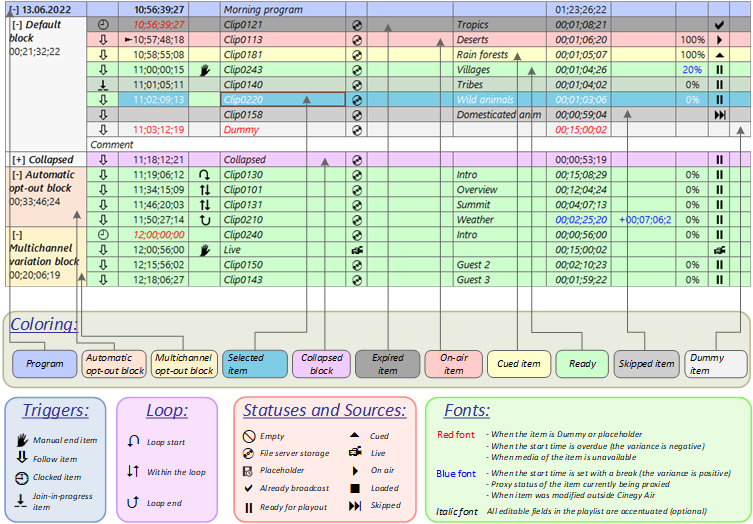
|
Note
|
To disable the use of italic fonts in the playlist‘s editable fields, deselect the "Use italic font for the editable fields" option in the "Preferences" window. Refer to the Preferences article for details. |
Analyzing Item Status
Each item in the Cinegy Air playlist is constantly analyzed to determine the current status of its associated media, verifying its validity and availability, and indicating any modifications applied to it.
Unavailable Items
If the media of a particular playlist item is unavailable or cannot be located, the corresponding item is displayed in red:

As soon as the media becomes available, the item’s color returns to its default state.
|
Note
|
The playlist item inserted from the Cinegy Archive database, which has multiple levels of quality, is analyzed only to detect the availability of the highest quality. |
Modified Item Sources
When a file-based item (including MCRitems) is added to the playlist, Cinegy Air continuously monitors its source to check whether its modification date has become newer. For a Cinegy Archive node added to the playlist, modifications made to its source in Cinegy Desktop become available for update in Cinegy Air.
|
Note
|
For working with Cinegy Archive nodes, Cinegy Desktop must be installed on the same computer as the Cinegy Air control application, and the corresponding Cinegy Archive database must be selected. |
If a change is detected, the corresponding item is highlighted in blue in the playlist table and on the timeline, indicating that it can be updated.

The items with modified sources can be updated using the dedicated commands.
If the duration of the source file has changed, you can define whether the playlist item duration should be updated accordingly.
|
Note
|
If any proxying has been generated for the modified item, the existing proxy chunks for this item are automatically deleted, and new proxy generation starts. |
Auto Update of Playlist Items
Playlist items modified outside the Cinegy Air control application can be automatically updated in the playlist. For this, the "Auto item update" option should be previously enabled in the Cinegy Air Configurator. After enabling this option, two dedicated columns are displayed in the playlist table – "AutoUPD" and "Auto Updated At":
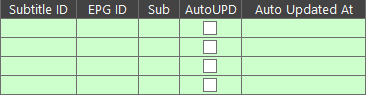
Select the checkbox in the "AutoUPD" column for the playlist item that should be automatically updated once modified (such as Cinegy Archive items, MCRItems, items directly replaced in the playlist, items currently being ingested). In the "Auto Updated At" column, the date and time of automatic update will be displayed for this item.
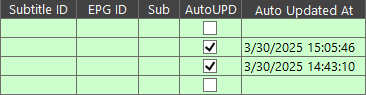
|
Caution
|
The item currently being broadcast cannot be automatically updated. If such an item is modified while being on air, it will be displayed in blue font in the playlist table. |
Playback While Recording
Clips whose media is still being recorded into the Cinegy Archive database can be added to the playlist. These items can be sent to playout while ingest is still in progress.
|
Note
|
Playback while ingesting into the MOV container within the Cinegy Archive database is not supported due to container limitations. |
If proxy generation is enabled, proxying runs in parallel with ingest. Once proxying reaches the end of the currently ingested portion, it automatically switches to another item and then resumes proxying for that clip as soon as additional material becomes available.
After the ingest session completes, these items are treated as modified and displayed in blue in the playlist table and on the timeline.
Invalid Items
If there is an invalid item in the playlist, it cannot be loaded into the Cinegy Playout engine and is not sent on-air. This also prevents all subsequent items in the playlist from being loaded into the Cinegy Playout engine. Such items are displayed on a white background in the playlist table.

Proxied Items
With the item proxying feature configured in Cinegy Playout, every item will be proxied in the background. The proxy status for playlist items is shown as a percentage in the "Proxy" playlist column:
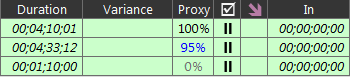
|
Note
|
The proxy value for the on-air item only shows a rate of proxying for the material yet to be played back, without regard to the part that has already been played back. |
To use the item proxying during ingest, the duration for the item being ingested should be set precisely. If the number of frames is unknown, 0 frames should be defined (e.g., 01:40:35:00).
|
Note
|
For the items to be successfully proxied, the ingest progress for the current item should be at least 3%; for short items, this value should be not less than 1.5%. Then the proxying of the item inserted into the playlist should reach a 10% rate, and then it will be ready to be sent on air. |
Coloring
Different proxying stages are shown with different colors:
|
The proxy status of the item currently being proxied is shown in blue. |
|
The proxy status of the item not being proxied at the moment is shown in black. |
|
The proxy status of the item currently being uploaded from the proxy server is shown in grey. |
|
The red background of the proxy status indicates the unavailability of the item source or failure when reading the item. When this occurs with the on-air item, the progress of proxying is counted backwards, and proxied media is played back directly from the proxy folder. |
|
The yellow background indicates that the whole item or some part of the item was proxied with autodegradation (in lower quality). |


|
Important
|
Quality degradation should be enabled in the "Proxy" tab of the Cinegy Playout Configurator. Refer to the Proxy article in the Cinegy Playout Manual for a detailed description of proxy setup. |
The proxy creation progress of each item is also shown on the timeline in the form of a light blue progress bar:

Drop Proxy
The "Drop proxy" command allows the user to restart proxying of the defined item in the playlist. This command is available from the item context menu or via the "Drop proxy" command from the "Item" main menu:
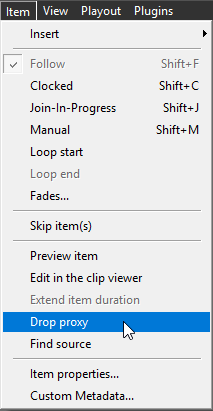
This function can be used for items proxied with autodegradation while the high-quality proxy files are needed, or when a problem during item proxying has occurred. All created proxy chunks are deleted, and the new item proxying starts.
Items Fade In/Out
It is possible to fade in and fade out playlist items. Fade in and fade out behavior is adjusted by defining the corresponding number of frames for the image transition to or from black. Fading is also applied to the audio in the item. To configure the fade in/out effect, select the required item and choose the "Item fades…" command available from the item context menu or via the "Fades.." command from the "Item" main menu:
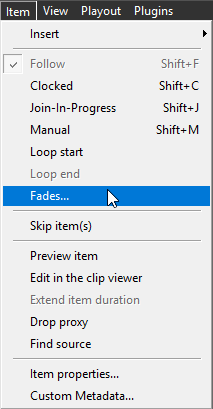
In the dialog that appears, specify the number of the frame from which you want to start item transition by selecting the "Fade in" option and entering the desired number of frames in the corresponding field:
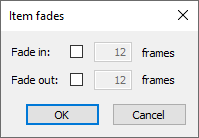
Select the "Fade out" option and enter the frame number for the item to fade out from black.
|
Note
|
The "Fade out" option is disabled for items with a manual end trigger. |
The fade-in and fade-out effects are visualized as shaded gray triangles in the "Start" and "End" columns of the playlist panel:
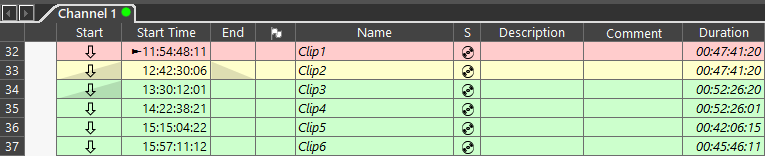
For Clip3, only the fade-in effect is applied
To disable the effect, choose the corresponding item and deselect the "Fade in" and "Fade out" options, and then click "Ok".
Inserting Items into an Empty Channel
When you add a new playlist or item(s) either to an empty playlist table or to a playlist with no active items (after all items have already been broadcast), the "Insert items" window appears:
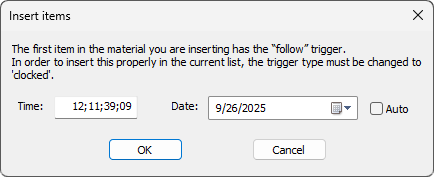
Here you can set the exact time and date when the inserted item will go on-air.
Insertion into Targeted Channel
MCRItems and MCRlists support a target channel name value that is assessed during their insertion in the active playlist. If the channel name value set in MCRitem or MCRlist does not match the name of the channel they are being inserted into, the following warning dialog is displayed indicating the mismatch:
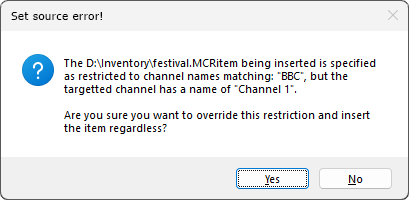
Press "Yes" to add the item with the mismatching target channel name anyway. Otherwise, press "No" to cancel insertion.
To prevent overwriting of the channel name value in MCRitems / MCRlists being inserted in the playlist, select the "No targeted channel override" option in the Cinegy Air Configurator. The following warning will appear during the insertion:
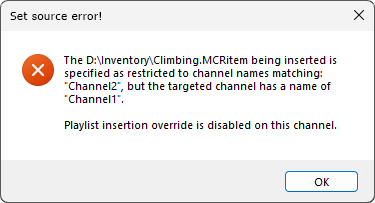
|
Important
|
Refer to the XML Playlist Format article to familiarize yourself with the XML syntax of the playlist. |
Playlist Control
Delete to Top of List
You can delete as many expired items as needed by using the "Delete to top" option from the right-click menu or the "Edit" main menu. All the items from the selected expired item through to the top of the list will be deleted.
Using the "Preferences…" option from the context menu or the "Edit" main menu, you can set the number of expired items, which will be represented in the playlist prior to automatic deletion of any expired item.
Delete to Bottom of List
To delete all non-expired items from the selected one (inclusively) to the bottom of the playlist, use the "Delete to bottom " command from the context menu or "Edit" main menu.
Playlist Update During Playback
The block and program duration is recalculated after the item with a manual end trigger is played back. Recalculation is also performed if the item is sent on air ahead of its scheduled time.
|
Note
|
The duration of a block is presented in frames and may differ from the sum of the durations of individual elements already played in this block, which are also represented in frames. This is caused by rounding when converting from milliseconds to frames. |