Integrated Browsers
Reading time ~5 minutes
Overview
Navigating through Cinegy Archive databases, searching for specific nodes, and selecting clips in Rolls, Sequences, or ClipBins to add them into the Cinegy Air playlist, browsing for locally stored clips and MCRitems – all these actions are available in the integrated browser windows located by default in the left-hand part of the Cinegy Air window.
The following windows are available for use:
-
File Browser – integrated file manager system.
-
Cinegy Browser – integrated Cinegy Archive browser.
-
Cinegy Search – plug-in to perform search operations through the Cinegy Archive database.
|
Note
|
Each of the integrated panels can be hidden if not needed. |
File Browser
The File Browser provides access to media stored on your local computer or a network share. It is displayed as a separate tab located by default in the left-hand part of the Cinegy Air window.
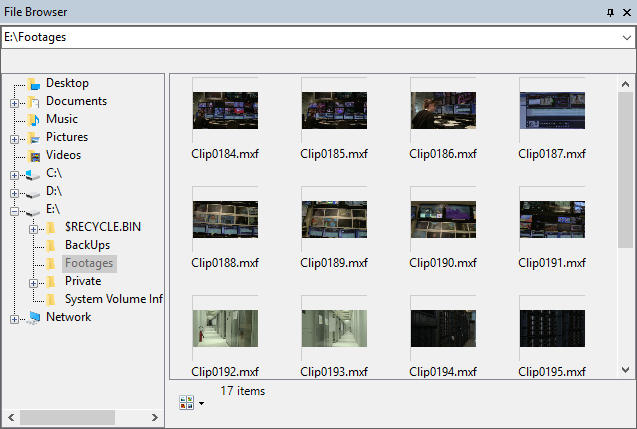
The File Browser is used to compose playlists with MCRitems (clips from Sequences, Bins, and Rolls that have been exported to the inventory folder) and with supported media files. File formats that are not supported by Cinegy Air are automatically filtered out and not displayed in the File Browser.
To add one or more items from the File Browser to a playlist, simply use drag-and-drop as it is described here.
|
Note
|
The inserted file(s) will adopt the aspect ratio defined in the Cinegy Air Configurator. |
Cinegy Browser
|
Note
|
The Cinegy Browser provides access to the Cinegy Archive database selected in the Cinegy Desktop Configurator and is available only with Cinegy Desktop (including the Cinegy Archive Browser component) installed on the machine running Cinegy Air with a valid separate license. For more details about purchasing licenses, please contact the Cinegy Sales Team. |
|
Tip
|
Cinegy Browser can be disabled for use with the "Don’t use Cinegy Browser" option in the Cinegy Air Configurator. |
Cinegy Browser is displayed as a separate tab located by default in the left-hand part of the Cinegy Air window.
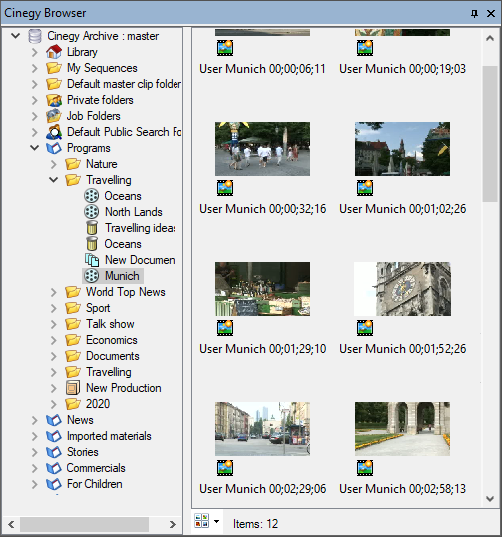
Cinegy Browser is designed for efficient navigation through the Cinegy Archive database, providing direct access to clips, Sequences, and documents within the Cinegy Archive database. You can browse the content of the database in a tree-like structure on the left-hand part of the panel.
The Cinegy Browser displays the content of each folder or bin selected in the database tree. When you click a ClipBin or Roll, all clips contained in it are displayed on the right-hand panel:
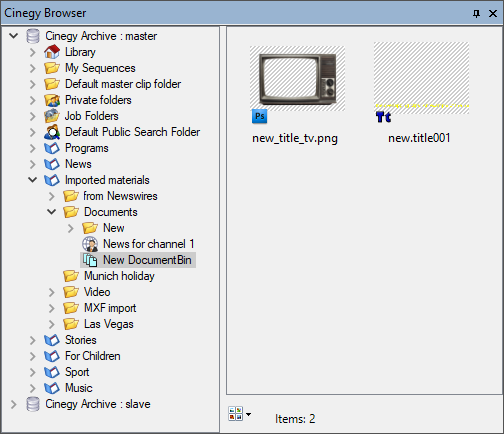
Clicking a DocumentBin displays its contents:
Double-clicking a clip opens it in the Cinegy Clip Viewer.
|
If all media qualities for a particular footage are unavailable, the system displays the "Media Offline" text in clip thumbnails. Such clips are not allowed to be added to the Cinegy Air playlist. |
|
The audio-only clips are indicated with the waveform icon. The system performs the audio-only playback in the viewer, displaying the waveform of the audio. |

To add one or more Cinegy Archive nodes from the Cinegy Browser to a playlist, simply use drag-and-drop as it is described here.
Cinegy Search
|
Note
|
The Cinegy Search tab provides access to the Cinegy Archive database selected in the Cinegy Desktop Configurator and is available only with Cinegy Desktop (including the Cinegy Archive Browser component) installed on the machine running Cinegy Air with a valid separate license. For more details about purchasing licenses, please contact the Cinegy Sales Team. |
|
Tip
|
Cinegy Search can be disabled for use with the "Don’t use Cinegy Browser" option in the Cinegy Air Configurator. |
Cinegy Search is displayed as a separate tab located by default in the left-hand part of the Cinegy Air window.
In the Cinegy Search window, you can quickly find the required Cinegy Archive nodes and add them to the Cinegy Air playlist using simple drag-and-drop, as described here.
|
To start searching, enter your request in the "Search" field via keyboard and press the "Search" button or hit Enter. |

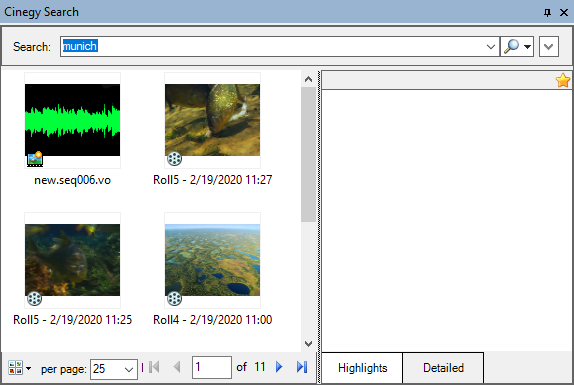
All nodes matching the search request are displayed according to the selected view mode.
Advanced Search
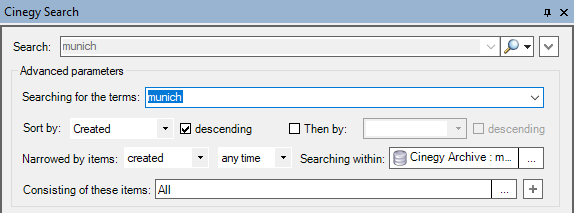
Press the  button next to the search field to show/hide the advanced search options and enter your search request in the "Searching for the terms" field:
|
Important
|
Refer to the Cinegy Search article for a complete overview of the Cinegy search workflow, including database preparation and techniques for crafting effective search queries. It will help you make the most of your search capabilities in the Cinegy Archive database. |
Sorting
Media items in the selected folder or bin, documents in a DocumentBin, and objects found via Cinegy Search can be sorted by various criteria using the "Arrange by" command in the context menu:
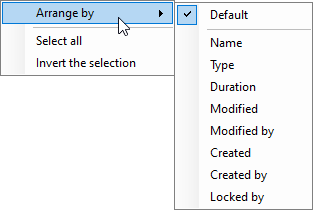
The folder tree in Cinegy Browser can also be organized for convenience. Each portfolio or folder can be expanded or collapsed using the arrow buttons, and the contents of a selected container can be sorted by basic criteria (e.g., name, type, date) via the same "Arrange by" command.
View
There are multiple view options for displaying content within the browser. To change the view, click the "Change your view" icon at the bottom of the browser window and select the desired option:
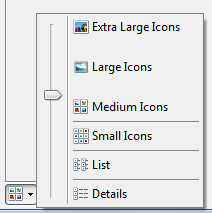
You can use the slider to manually change the thumbnail scale between medium and extra-large icon sizes.
|
Note
|
The "Change your view" icon will look different depending on the view you have chosen. |