Proxy
Reading time ~4 minutes
|
Caution
|
The item proxying feature requires a dedicated license. |
The "Enable Network Proxy Caching option" ensures quick and safe playlist broadcasting. Having configured the Network Proxy Caching option, the Cinegy Playout engine will automatically start background rendering and encoding process of creating a high-quality render cache using light-weight compression. Using a smart caching algorithm via the corresponding settings, it takes into account the time of the material to be on air and the amount of space assigned to this local cache. Once the chunks for playlist items are played out, the Cinegy Playout engine automatically deletes them, unless they are not included in the playlist at the nearest time, replacing the deleted chunks with newly generated ones.
If this option is selected, only the most recent items will be played from their original location, and the rest of the playlist items will be played from the local proxy media folder. Thus, even if you immediately start playing the item, only its beginning will be played out from the remote footage. The item will be played out from the local cache on condition that there is enough computing power/performance for real-time or prior local cache creation and timely local chunk generation. In case a playlist has enough proxied material stored in the local cache, the Playout engine will still continue playback even if access to the original clips is missing.
The proxy caching is configurable via the "Proxy" tab:
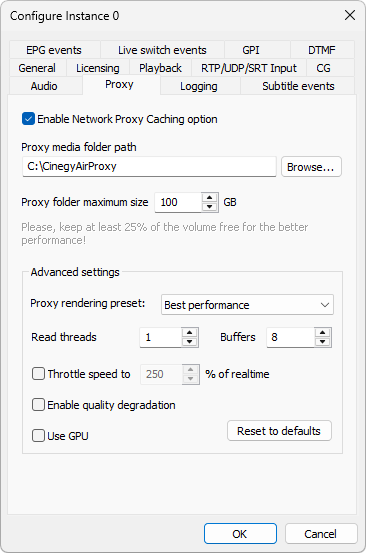
To set proxy configuration, you should:
-
Set the proxy folder path.
-
Set the proxy folder size limit.
|
Caution
|
Leave at least 25% free space on the volume for the proxy to ensure stable work and smooth performance. |
|
Caution
|
Manually deleting proxy files during playout disrupts the proxying algorithms and is therefore strongly discouraged. If proxy files have been deleted, the Cinegy Playout Engine must be restarted to restore proper proxying functionality. |
Advanced Settings
The following settings are available here:
-
Proxy rendering preset – choose one of the following proxy rendering presets: Best performance, Medium quality, High quality, or Uncompressed. The Daniel2 encoder is used in all presets.
ImportantTo benefit from the usage of Daniel2 GPU encoding, it is necessary to have a proper NVIDIA GPU board. If no valid GPU is available, the Daniel2 encoder will automatically switch to CPU mode. -
Read threads – define the number of proxy threads from 1 to 32.
-
Buffers – define the number of proxy buffers from 1 to 16.
Proxy Throttling
The "Throttle speed to <number>% of realtime" option is used to set the proxy speed limit. As a result, CPU usage will be decreased by increasing proxy time.
|
Note
|
Please note that if the proxy speed does not exceed the defined limit, throttling will not work. |
The real-time value depends on the current TV format frame rate. For example, PAL format frame rate is 25 fps. If you set the 1000% speed limit (250 fps) and the engine attempts to proxy the material at a speed over 250 fps, the time breaks will be added to the proxy process. The minimum configurable throttle speed is 100% (realtime).
Quality Degradation
A clip may contain media in three qualities: high, medium, and low. By default, the highest available quality is used for proxying. If, for some reason, this quality becomes unavailable, no proxy files are created for the clip. When the "Enable quality degradation" option is selected, the next highest available clip quality will be proxied.
If a clip has been proxied with quality degradation while the high-quality proxy files are needed, it can be reproxied via the "Drop proxy" command in Cinegy Air and Cinegy Studio.
Use GPU
Check the "Use GPU" option to activate GPU encoding mode for proxy files generation.
|
Note
|
The default system graphics card GPU will be used for proxy files encoding. |
Default Settings
|
Press the "Reset to defaults" button to restore the default proxy settings. |
Troubleshooting
To find out whether Cinegy Playout is playing the original media or its proxy copy, you can stamp the frames once they are rendered by changing the "StampProxyFrames" parameter value to "1" in the following file:
C:\ProgramData\Cinegy\CinegyAir\Config\Instance-n.Config.xml
where n is the number of the Cinegy Playout instance.
Frames being read from the proxy folder are marked with color boxes: