Controlling Playout
Reading time ~2 minutes
The Playout Control panel displays the current Cinegy Playout engine(s) output with the applied Cinegy Title template(s). Multiple Cinegy Playout outputs can be managed simultaneously, with each output shown on a separate tab.
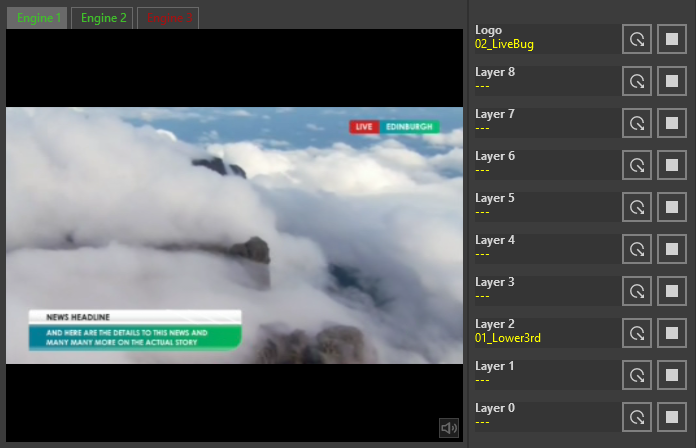
The previews of servers running Cinegy Playout engines, added through the settings, are displayed on individual tabs. Each tab name corresponds to the alias defined for the respective Cinegy Playout engine in the settings dialog. If a Cinegy Playout engine is unavailable, its tab name is shown in red font.
While monitoring the playout, you can adjust the audio volume using the "Volume" button  . Hover the mouse pointer over the "Volume" button to access the volume control slider. The tooltip will display the volume percentage. Click on the "Volume" button to mute the audio output during preview. The icon will change to
  .
.
On the right side of the panel, a list of layers (with default names or their aliases) with their assigned Cinegy Titler templates is displayed. Each layer includes individual buttons for exiting the loop or stopping the template broadcast on that specific layer. The name of the Cinegy template is shown below the layer number in yellow font. Templates assigned to a particular layer are applied simultaneously to all connected Cinegy Playout engines.
|
The Cinegy Title template can be configured to play in a loop. To make the template exit the loop at a specific moment, the "Leave Loop" trigger must be applied by pressing the "Exit loop" button. |
|
Press the "Stop" button to stop the Cinegy Title template broadcast on the corresponding layer. |

