Interface
Reading time ~4 minutes
The Cinegy Title Studio interface is shown below:
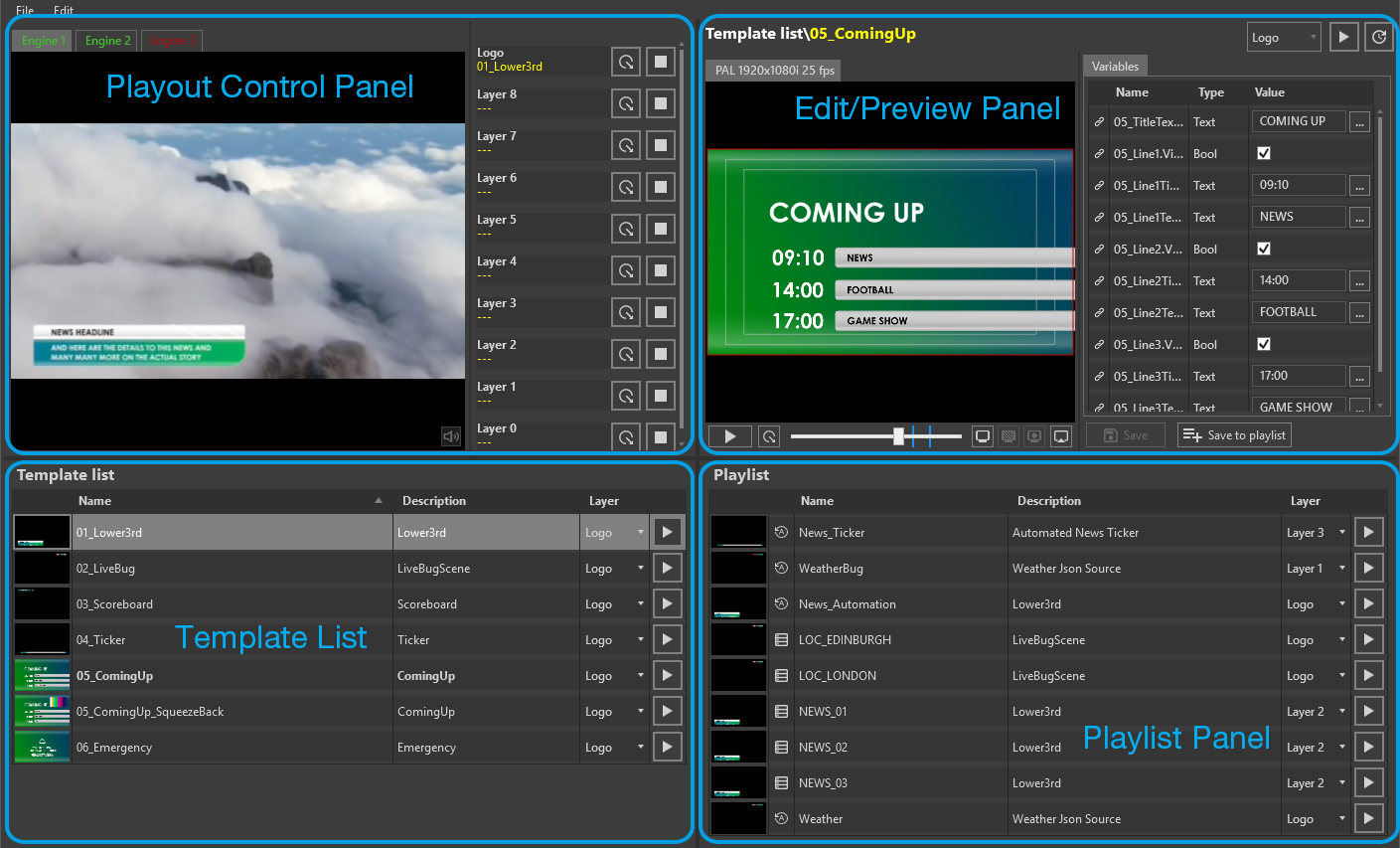
It consists of the following panels:
Playout Control Panel
This panel displays the live output from the connected Cinegy Playout engine. Multiple engines can be connected, each shown in a separate tab, and the preview updates according to the currently selected tab.
The list of graphics layers and the Title templates applied to them is displayed on the right. Each layer provides control buttons that allow users to quickly clear graphics or exit loops when fast action is required. A Cinegy Title template assigned to a particular layer is applied to all configured Cinegy Playout engines.
|
Important
|
Refer to the Controlling Playout section for more information about controlling graphics playout, managing layers, and using the available control actions. |
Template List
This panel displays a list of all Cinegy Title templates available in the production folder.
Template thumbnails show the middle frame of each scene. The template name and description are displayed alongside. The description reflects the scene name retrieved from the template (the name of the topmost object in the CG scene).
Each template can be assigned to a graphics layer and sent to playout with its predefined variables. Double-clicking a template loads it into the Edit/Preview Panel.
Edit/Preview Panel
In this panel, you can preview the Cinegy Title template frame by frame, moving forward or backward, and play or pause the template to see the animation flow. The preview window offers various settings, including viewing template objects on a solid color background, a transparent background, and an alpha layer preview.
You can also change variable values on this panel, and these changes are instantly displayed in the preview window. Having modified the variables, you can save the changes to the original Cinegy Title template or create a separate playlist item (displayed on the Playlist panel).
|
Important
|
Refer to the Previewing and Editing Templates section for more details. |
Playlist Panel
The playlist is a core part of Cinegy Title Studio, designed to simplify repetitive graphics workflows.
In live production, the same template is often reused with different content – such as team lineups in a football match or lower-thirds in a news show. The playlist allows operators to prepare these variations in advance, reducing the need for duplicated templates or manual updates during the broadcast, helping to reduce workload and the risk of errors.
In the playlist, operators can prepare all content variations in advance, save them as playlist items, and trigger them instantly during the show. Each playlist item references a master Cinegy Title template. Any design change – such as font size, color, or object layout – automatically applies to all related playlist items, eliminating the need to manually fix duplicated templates.
Using a playlist ensures faster preparation, consistent design, and more reliable live operation.
|
Important
|
Refer to the Playlist section for more details on working with a playlist. |
Interface Customization
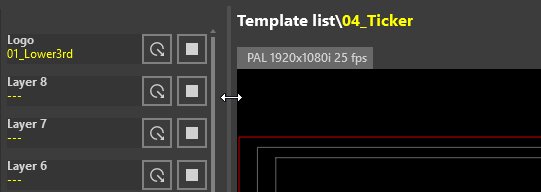
The size of the interface panels can be adjusted to create a more comfortable and efficient working environment in Cinegy Title Studio. To resize panels, hover the cursor over the grid lines. When the mouse pointer changes to a double-sided arrow, and the grid line is highlighted in light grey, drag the grid line to adjust the panel size.
Different shows may require different UI layouts:
-
In predefined shows (for example, news bulletins, music clip rundowns), the operator may prefer a larger playlist area to follow the rundown and trigger graphics sequentially.
-
In live debate shows or unscripted discussions, where new headlines are created dynamically, operators typically need a larger variable editing and preview area and a smaller playlist area for greater flexibility and efficiency.
All production-specific customizations, such as panel layout proportions, are preserved after changing the production folder and closing the Cinegy Title Studio working session. The last accessed production folder is also remembered, providing immediate access to the most recent work context upon program start-up. This ensures that operators can resume their work with minimal setup time, maintaining efficiency in a fast-paced studio environment.