Settings
Reading time ~1 minutes
The "Settings" dialog is launched via Edit → Settings main menu command:
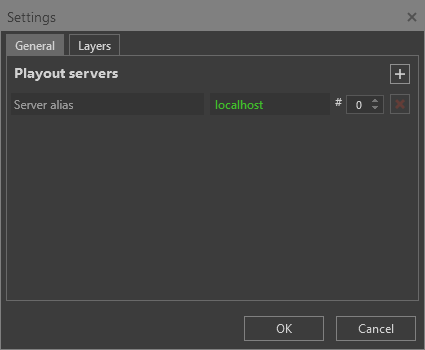
General
On the "General" tab define the servers running the Cinegy Playout engines. Only one server is enabled by default, you can add more servers by pressing the  button.
If several Cinegy Playout engine instances are started on the same server, define what engine instance will be used to process the specified playlist in the corresponding "#" field next to the server IP address.
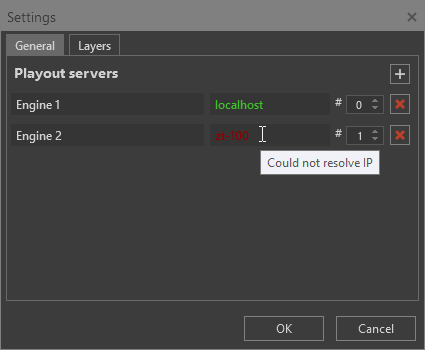
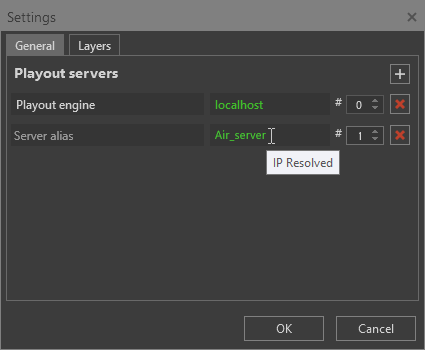
While entering the server name and during its validity check, the server name value is displayed in grey. The correct and accessible Cinegy Playout engine name and instance number is displayed in green. In case there is an error in defining servers paths, they will be displayed in red, hovering the cursor over the path will show the tooltip for the reason:
|
|
To remove a server, press the  button.
Layers
On the "Layers" tab you can assign a short custom name for the layers. This alias can help the operator to identify the layer faster and easier.
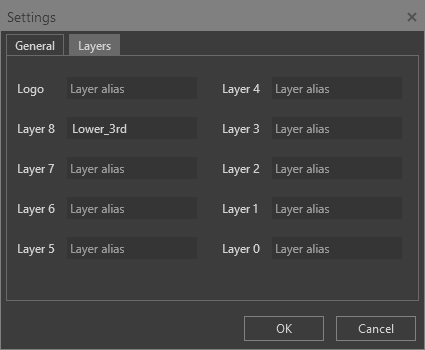
The custom aliases are displayed throughout the interface on all panels, replacing the numeric layer labels, while keeping their original order.
|
Note
|
The custom alias cannot be longer than 10 characters. |